

Ray-Tracing Tutorial (Part A): Prism and Teapot Playground
In this tutorial you will use OghmaNano’s Optical Workbench to play with a colourful ray-tracing scene containing prisms, an aperture, a detector and (in later parts) a CAD teapot. The aim is not to build a realistic camera, but to give you a playground for exploring the main features: launching simulations, rotating objects, looking at beam profiles and examining what the detector “sees”.
We start from a pre-built prism demo. This scene already includes:
- Two red prisms in the optical path.
- A green ray source that launches photons into the system.
- An aperture that blocks rays away from the central hole.
- A purple detector that collects all rays that pass through it.
When you run the simulation you will see reflection, refraction and dispersion in action, and you will be able to inspect both the detector efficiency and a rendered image of what the detector views.
Step 1: Create a new ray-tracing simulation
Start OghmaNano from the Windows Start menu. From the start window select New simulation. This opens the device-library window shown in ??. Double-click the Ray tracing folder (highlighted) to open the list of ray-tracing examples, shown in ??.
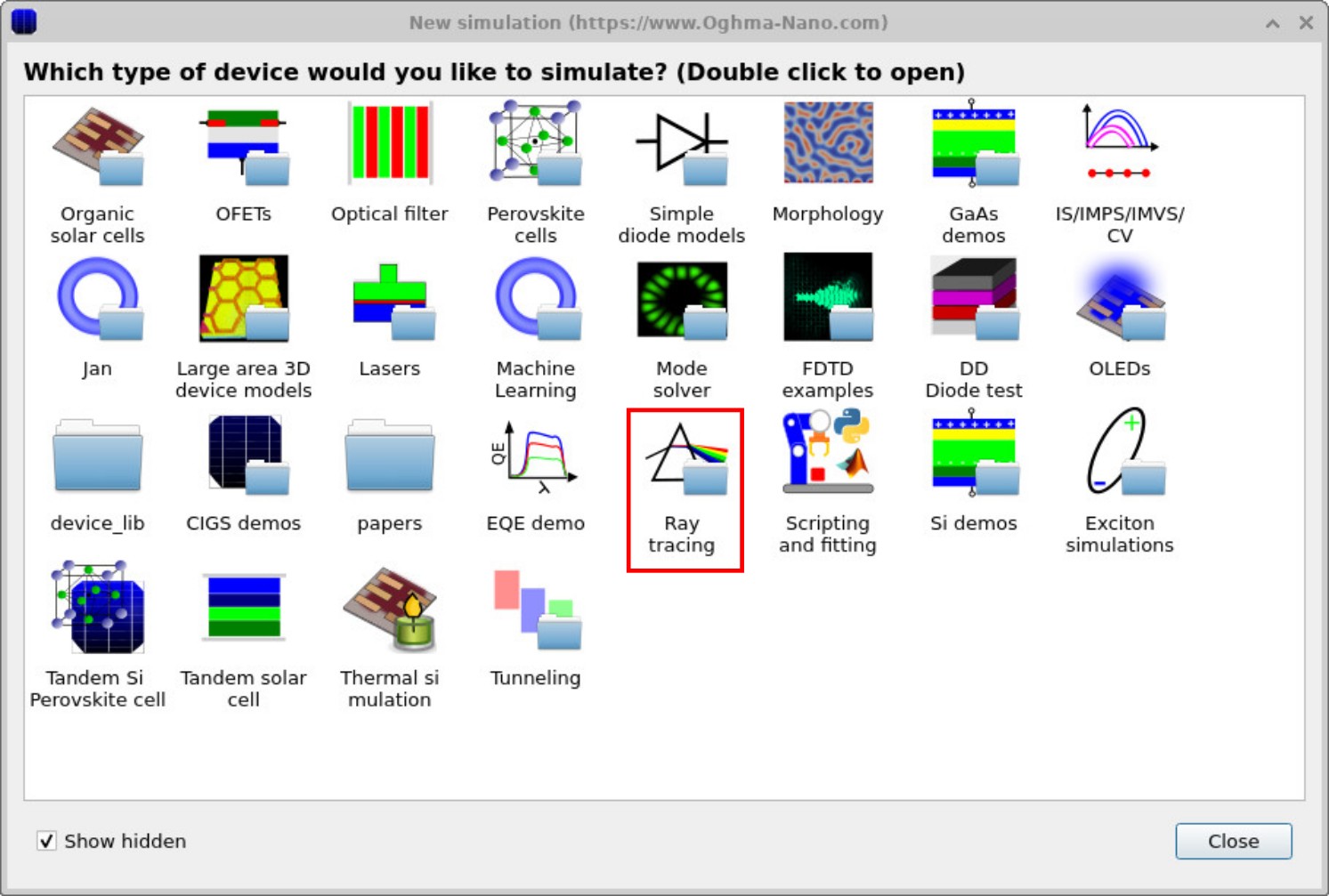
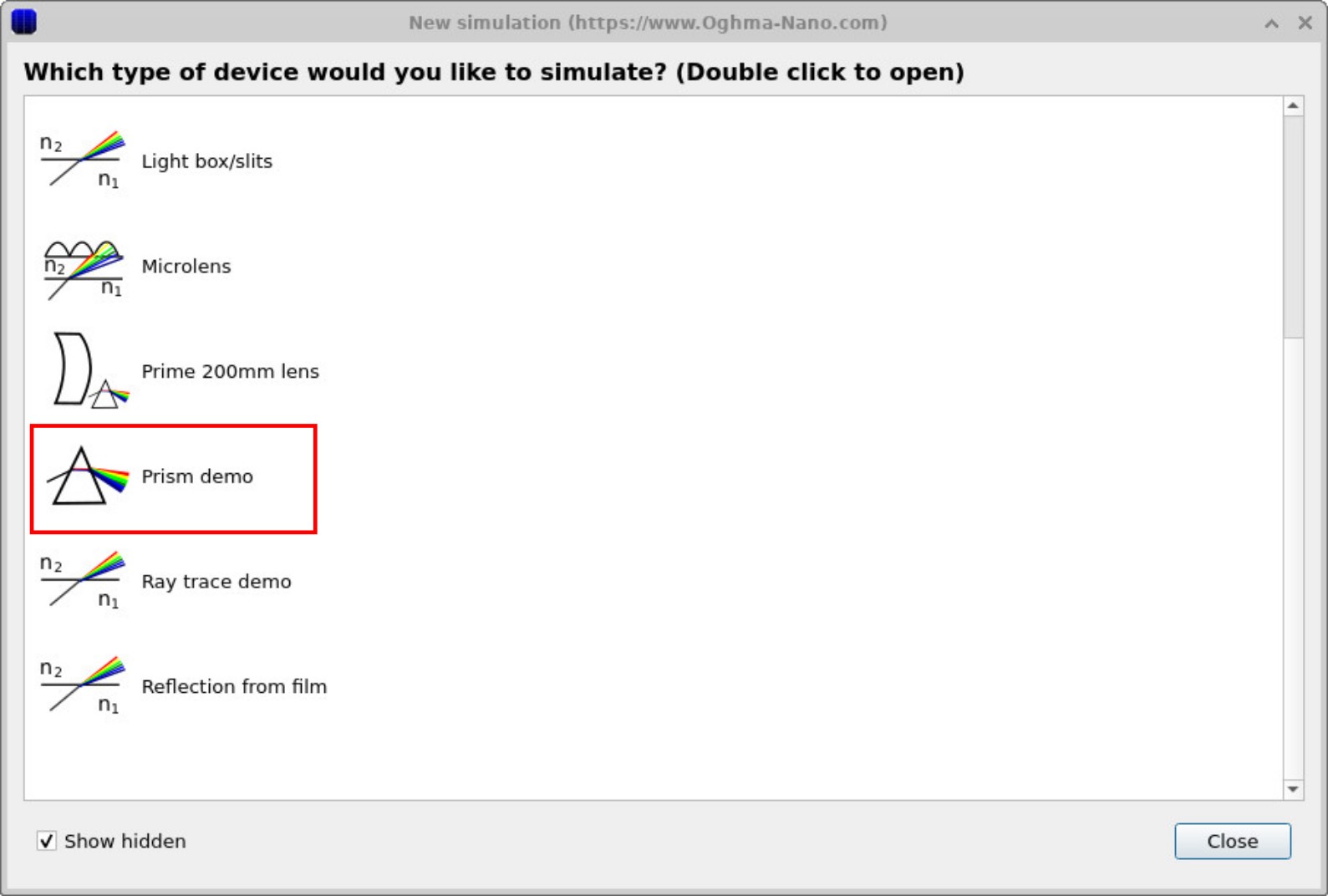
Double-click Prism demo, then choose a folder where you have write access and save
the simulation. For best performance save to a local disk (for example C:\) rather than
a network or cloud drive.
Step 2: Explore the default scene
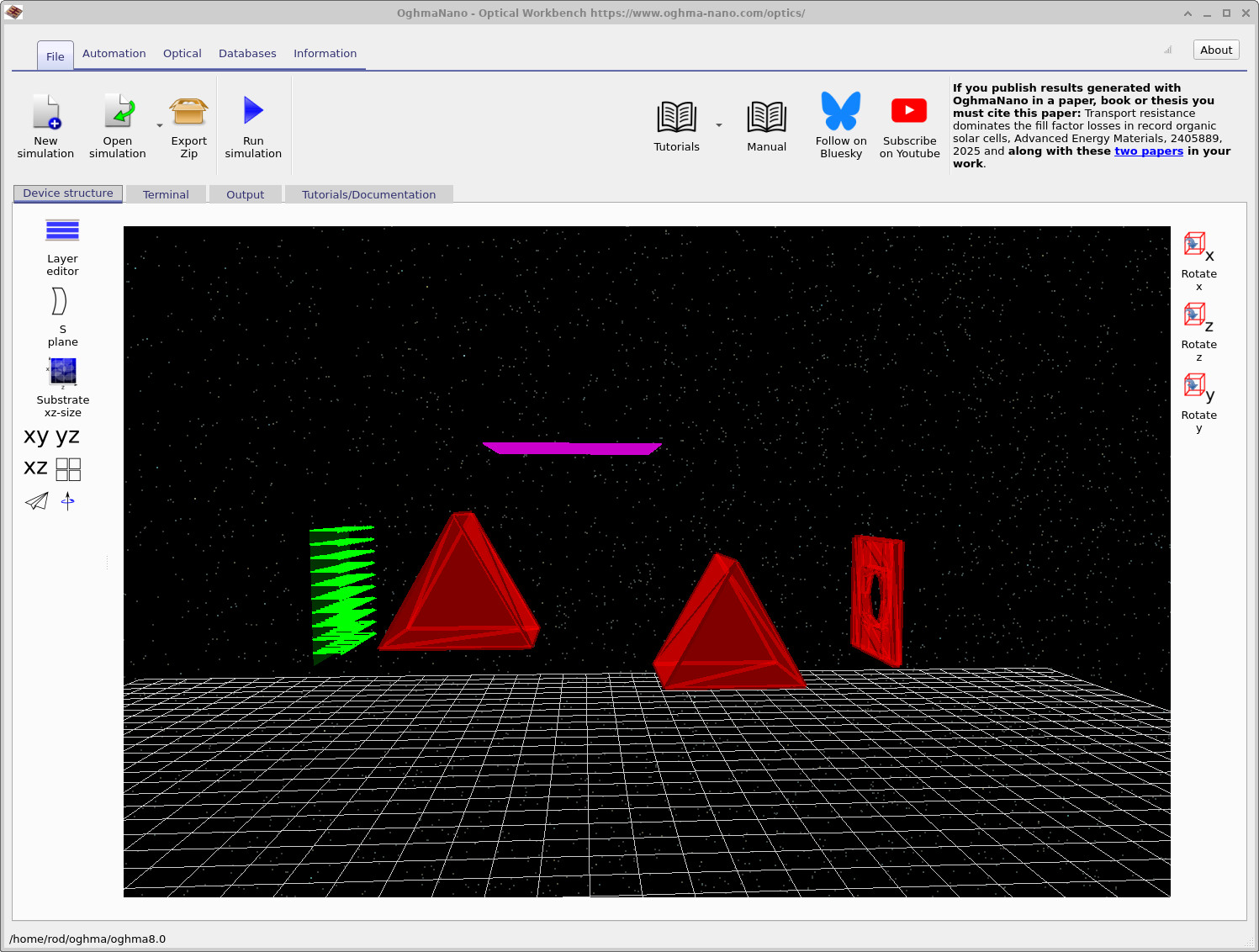
After loading the example, the main Optical Workbench window opens as shown in ??. The scene contains the main optical components you will use throughout this tutorial:
- Green arrows (left): an optical source that launches rays of different wavelengths.
- Two red prisms: bulk optical elements that refract and reflect the rays.
- Red aperture plate: a plate with a central opening that lets some rays through while blocking others.
- Purple grid (top): a detector that collects rays, similar to a CCD in a camera.
Use the mouse to look around the scene. The left mouse button rotates the view, while the right mouse button pans the scene. You can zoom in and out using the mouse wheel. On the left-hand side of the window you will see buttons labelled XY, YZ, and XZ. These preset the camera to look directly along each plane, which can be useful when repositioning objects or checking alignment.
Step 3: Run the simulation
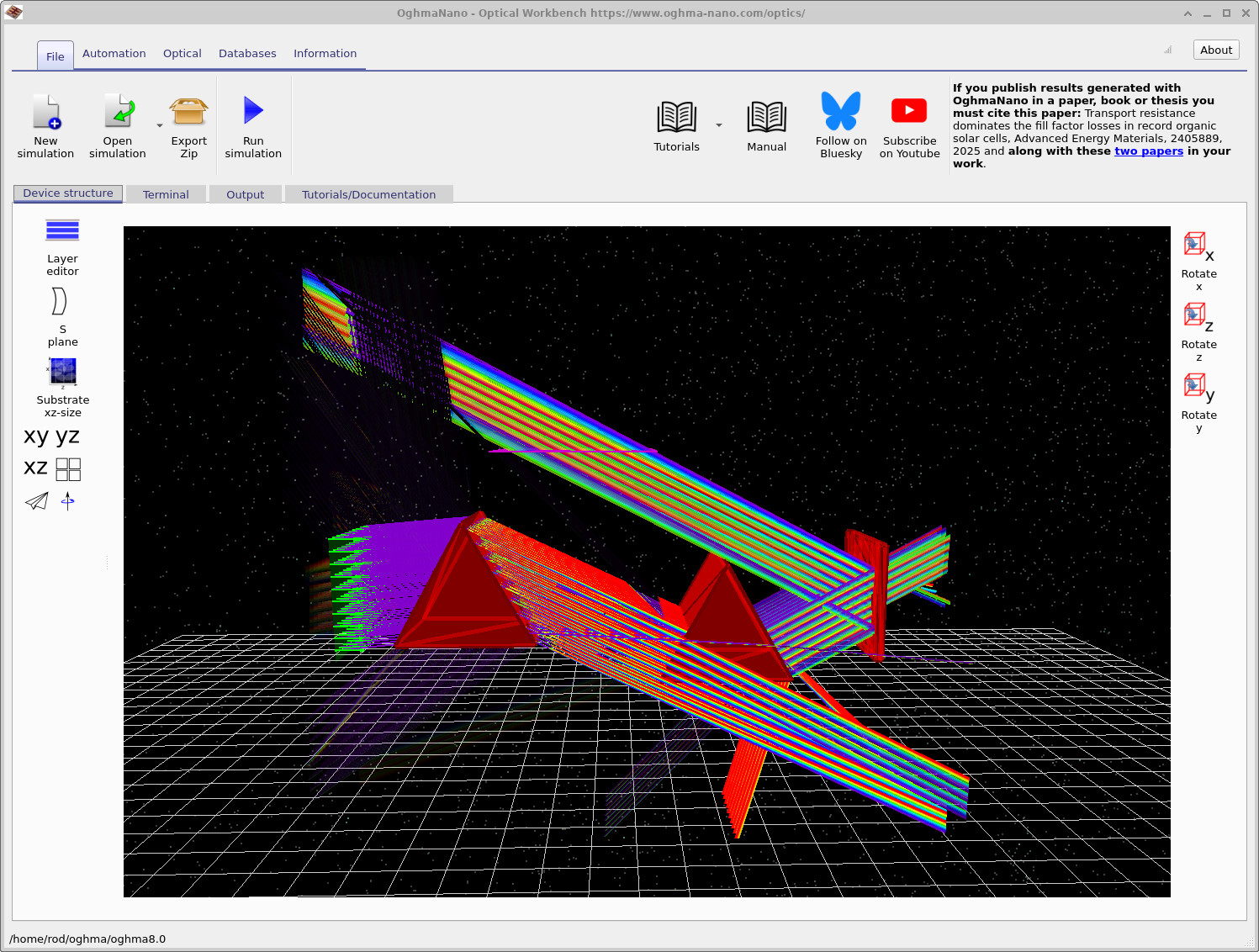
Click the Run simulation button (blue play icon) or press F9. OghmaNano traces rays from the source, through the prisms and aperture, to the detector. When the run finishes the scene looks similar to ??.
The coloured bands show how different wavelengths follow different paths through the prisms. This is a simple demonstration of:
- Snell’s law (refraction at an interface),
- Reflection at boundaries, and
- Dispersion – different refractive indices for different wavelengths, leading to a visible rainbow. (See the Wikipedia article on optical dispersion for background.)
Snell’s law and reflection/transmission
Snell’s law relates the angles of incidence and refraction at a flat interface:
\( n_1 \sin\theta_1 = n_2 \sin\theta_2 \)
where \(n_1\) and \(n_2\) are the refractive indices of medium 1 and 2, and \(\theta_1\) and \(\theta_2\) are the angles measured from the surface normal.
At normal incidence a simple expression for the power reflectance \(R\) at an interface is
\( R = \left(\dfrac{n_1 - n_2}{n_1 + n_2}\right)^2 , \qquad T = 1 - R \)
where \(T\) is the transmitted fraction of power. OghmaNano uses these ideas (together with the full Fresnel equations) when tracing each ray through the prisms and aperture.
Step 4: Inspect the detector outputs
To see what the detector has recorded, click the Output tab at the top of the window. You will see the list of files written by the ray tracer, similar to ??. The most important file at this point is the detector0 folder, which stores the outputs from the purple detector.
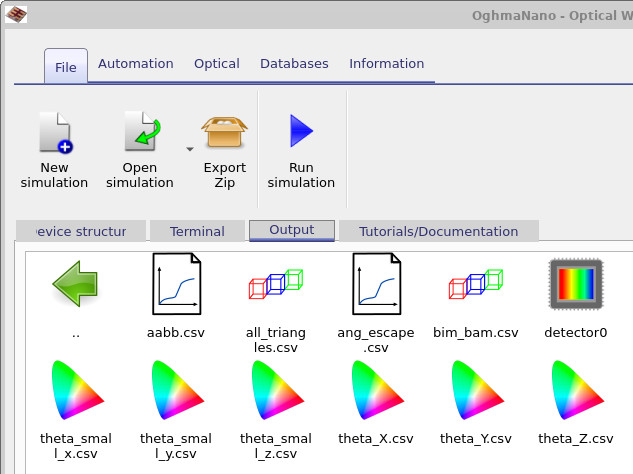
detector0 icon contains all
results associated with the main detector: efficiency curves, images and CSV data.
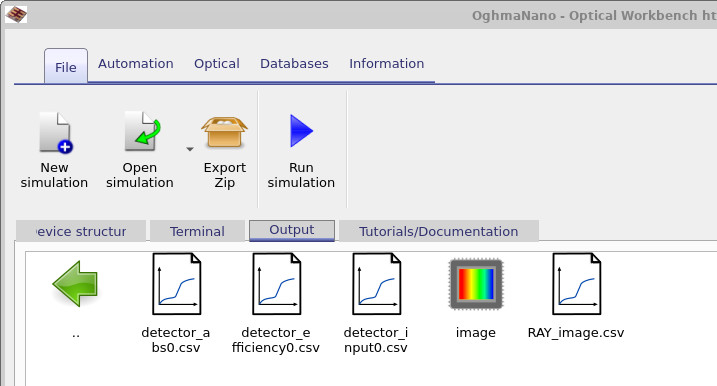
detector0 you will find the main detector output files, including
detector_efficiency0.csv (efficiency vs wavelength) and image
(a rendered view of the detector field).
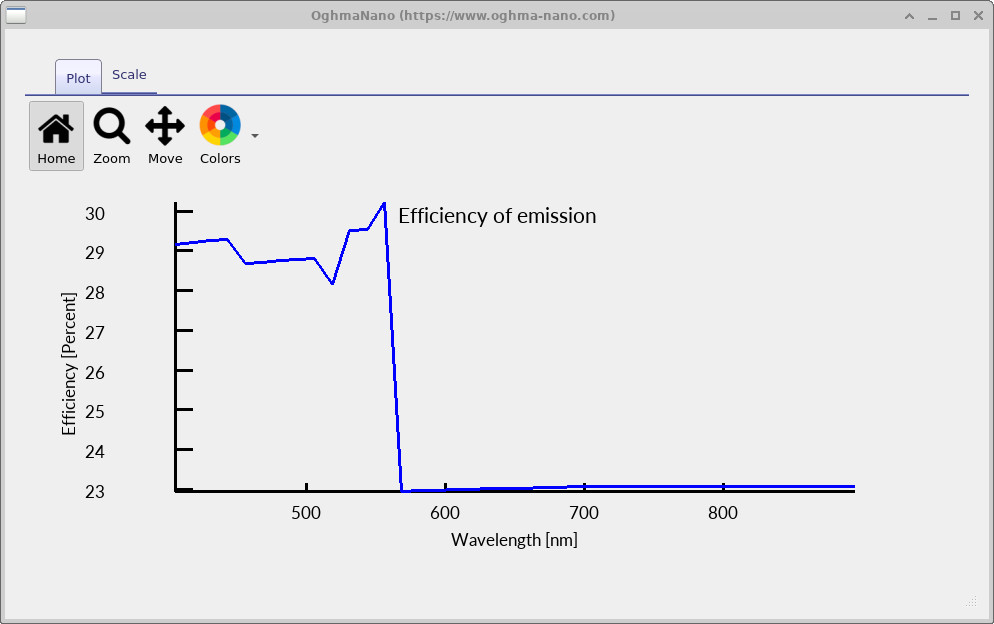
Double-click detector0. Then double-click
detector_efficiency0.csv to plot how efficiently the detector collects light as a
function of wavelength, as shown in
??.
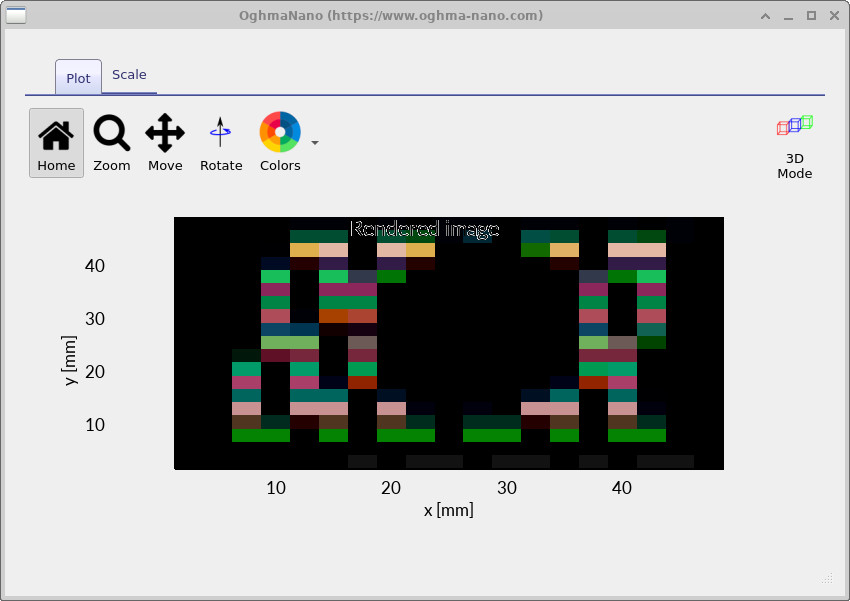
RAY_image.csv file shows a rendered picture of what your eye would see if it were
placed in the detector plane. Note the “hole” in the centre of the beam where the aperture
has blocked rays.
Next, double-click the RAY_image.csv file. OghmaNano reconstructs a colour image from all the wavelengths that reached the detector (typically around 20 wavelength bins in this demo). Rays that went through the central opening in the aperture form the bright coloured region on the detector; rays blocked by the aperture leave a dark hole in the beam profile.
If you rotate the 3D scene and follow the rays visually, you can trace how this hole forms: some rays are reflected by the aperture plate, some miss the detector entirely, and only rays that pass through the opening contribute to the bright region in ??.
👉 Next step: Continue to Part B from prisms to lenses. For an overview of optical systems and ray-tracing simulations, see Optical systems and ray tracing overview.