

Radio-Wave Scattering from a Golf Ball at 10 GHz
1. Introduction to RF Scattering at 10 GHz
Electromagnetic waves are reflected, transmitted and scattered when they encounter an object with different electrical properties from the surrounding air. The relative size of the object and the wavelength matters: a small object may barely disturb a long-wavelength field, while the same object can produce a structured scattering pattern at a shorter wavelength. Here we use a dimpled golf ball to investigate how radio waves interact with a compact, irregular three-dimensional shape.
Our excitation is centred near 10 GHz. In free space, the corresponding wavelength is approximately 30 mm. A regulation golf ball is about 42.7 mm in diameter, so it is slightly larger than one free-space wavelength. This makes it an interesting target for a microwave scattering example. The dimples add geometric detail, although resolving their individual effect requires a sufficiently fine numerical mesh.
We will use OghmaNano's finite-difference time-domain (FDTD) solver to record electric and magnetic fields. We will inspect the evolution of the fields, the power-density distribution, and the power recorded by a detector. Finally, we will replace the ball with a teapot to show that the same RF workflow can be applied to a different triangulated object. For more background see FDTD theory and the Stonehenge RF tutorial.
2. Create the Golf Ball RF Simulation
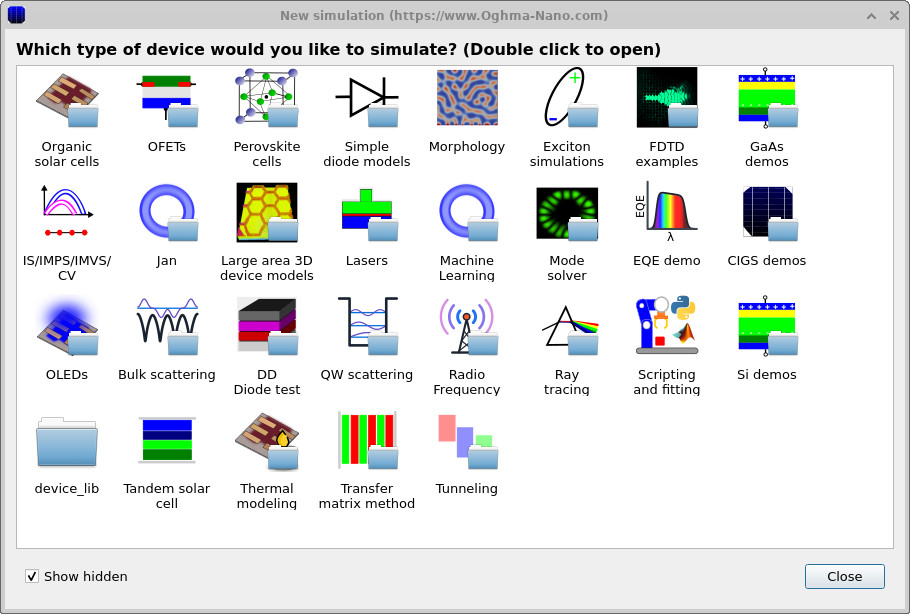
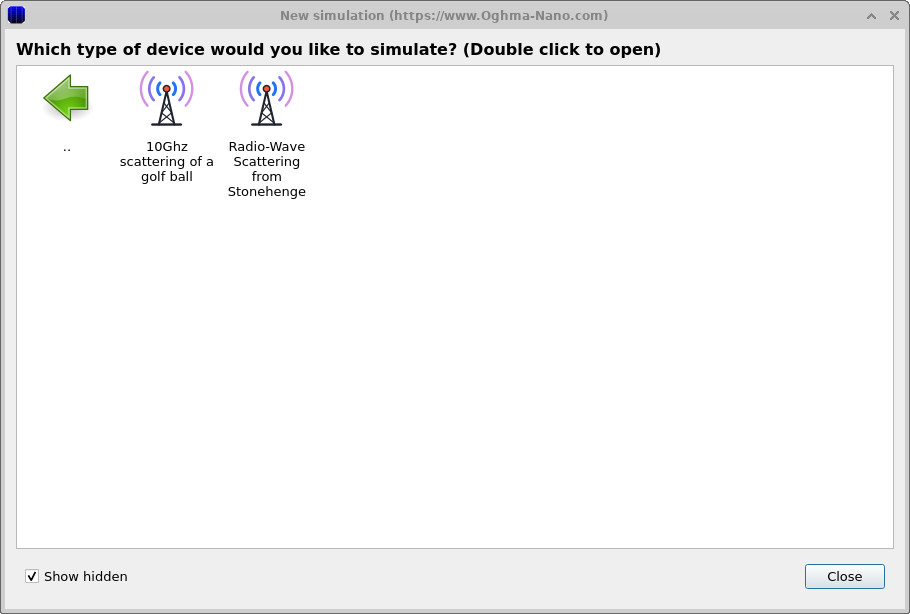
Start OghmaNano and choose New simulation. The available simulation categories are shown in ??. Open the RF examples category (??) and select the Golf ball example. Save the project in a directory where you have write access. The geometry, source and detector are already configured in the example, so you can run it without constructing the model yourself.
💡 Tip: Running simulations from a local drive normally avoids the latency of writing large quantities of FDTD output to a network or synchronised folder. See speeding up simulations.
3. Explore the Golf Ball and Run the Simulation
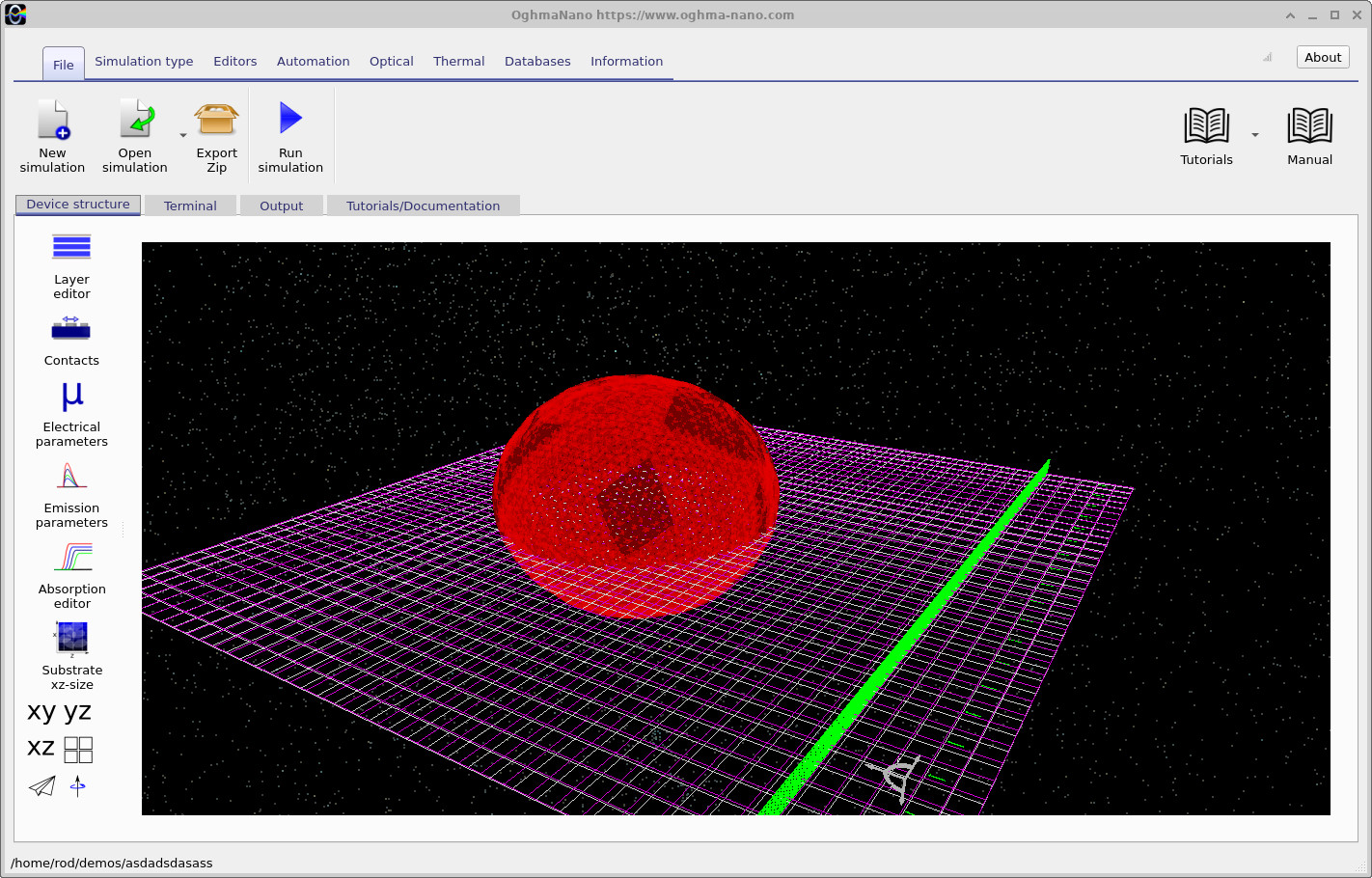
The main OghmaNano window displays the golf ball in red inside the calculation domain (??). The red surface consists of triangles representing the ball and its dimples. The surrounding wireframe shows the simulation region and its measurement planes. You can zoom and rotate the geometry to examine how the object is positioned relative to the RF excitation.
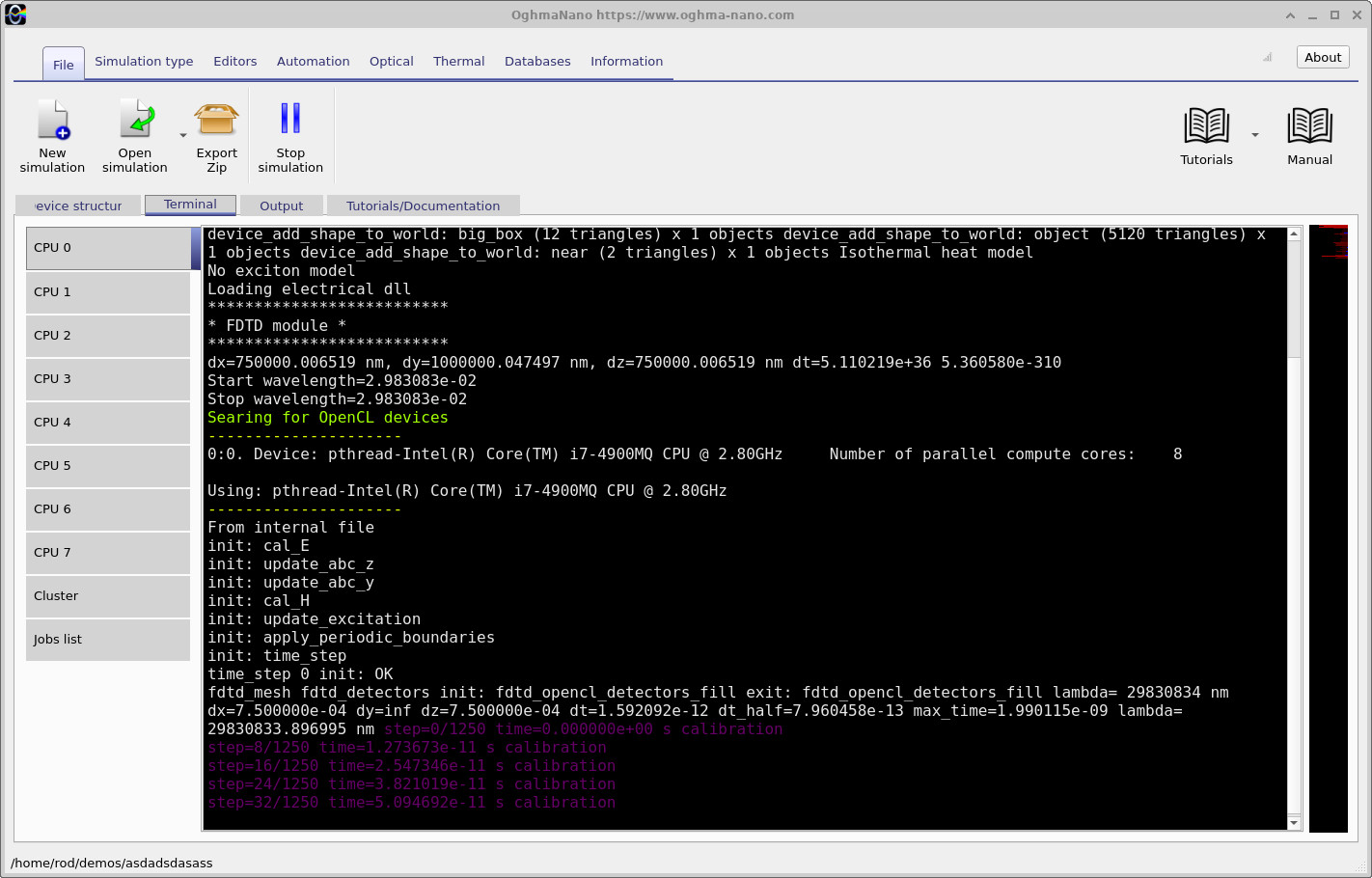
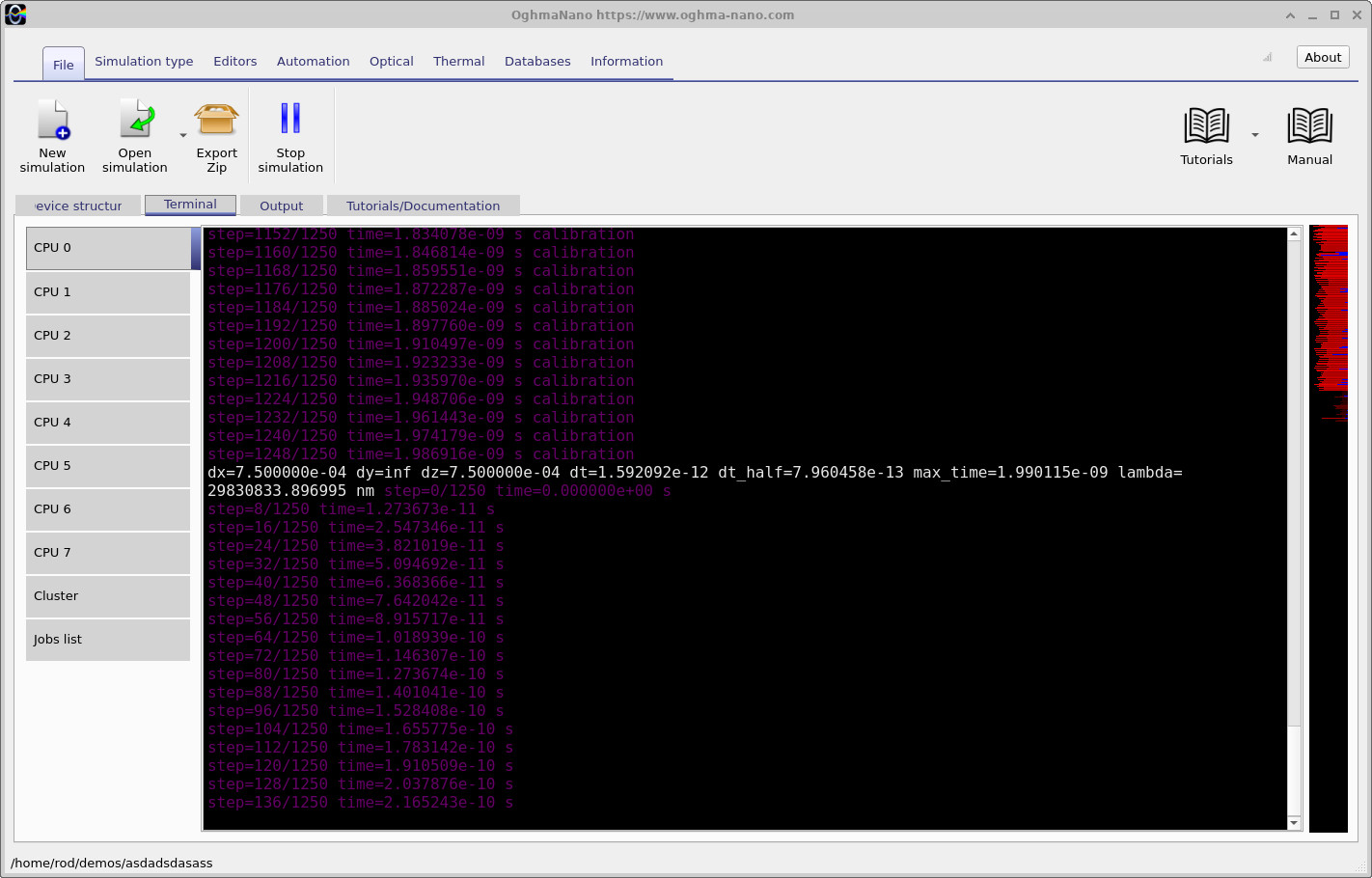
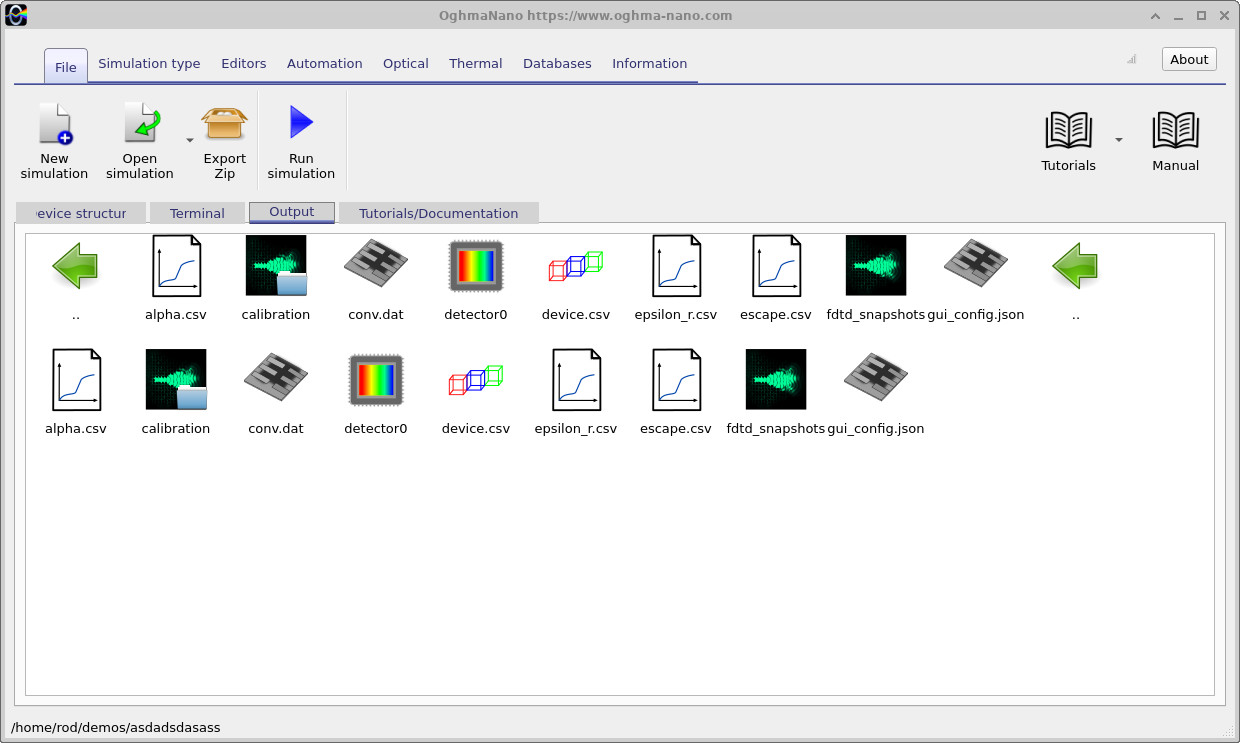
Click Run simulation (the blue play icon), or press F9. OghmaNano will initialise the mesh and electromagnetic fields, then advance the FDTD calculation in time. Its progress appears in the output console, as shown in ?? and ??. When the run is finished, open the Output tab (??).
4. Watch the Electromagnetic Field Propagate
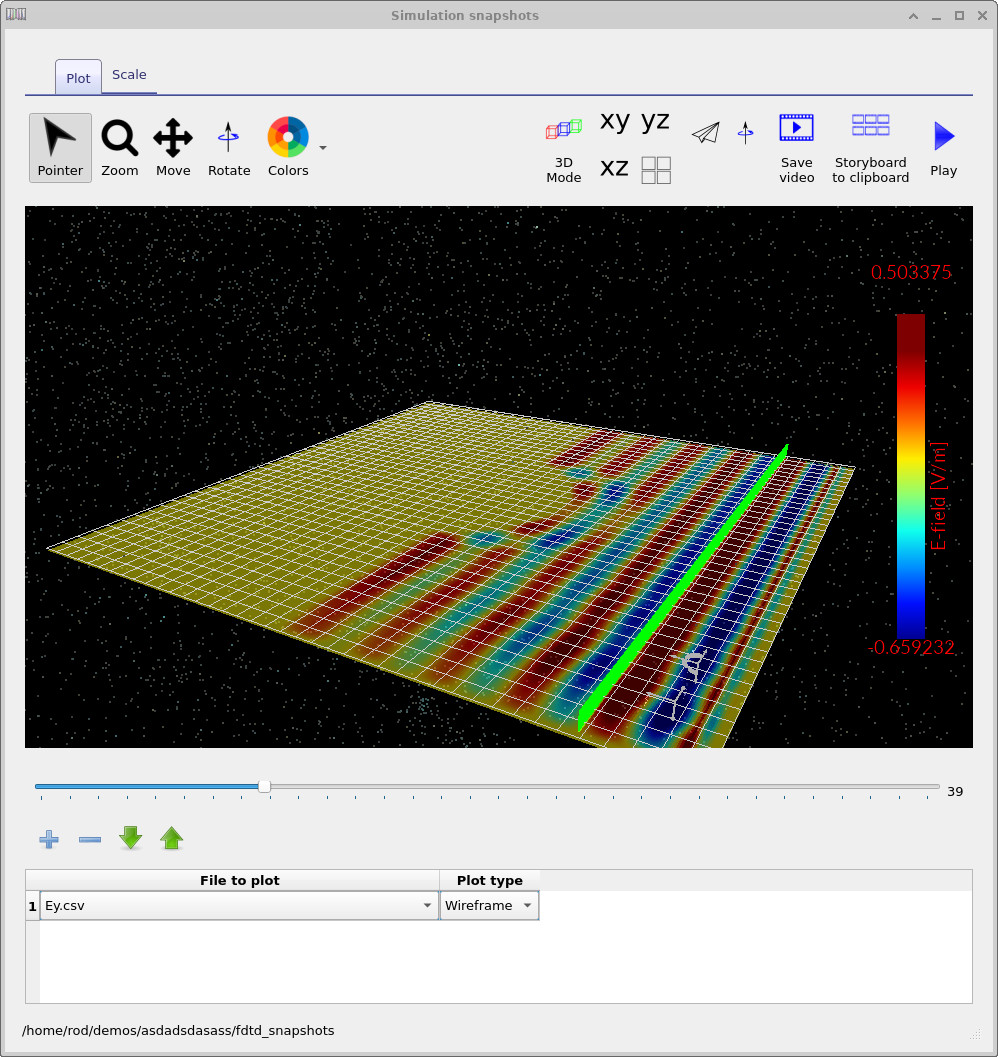
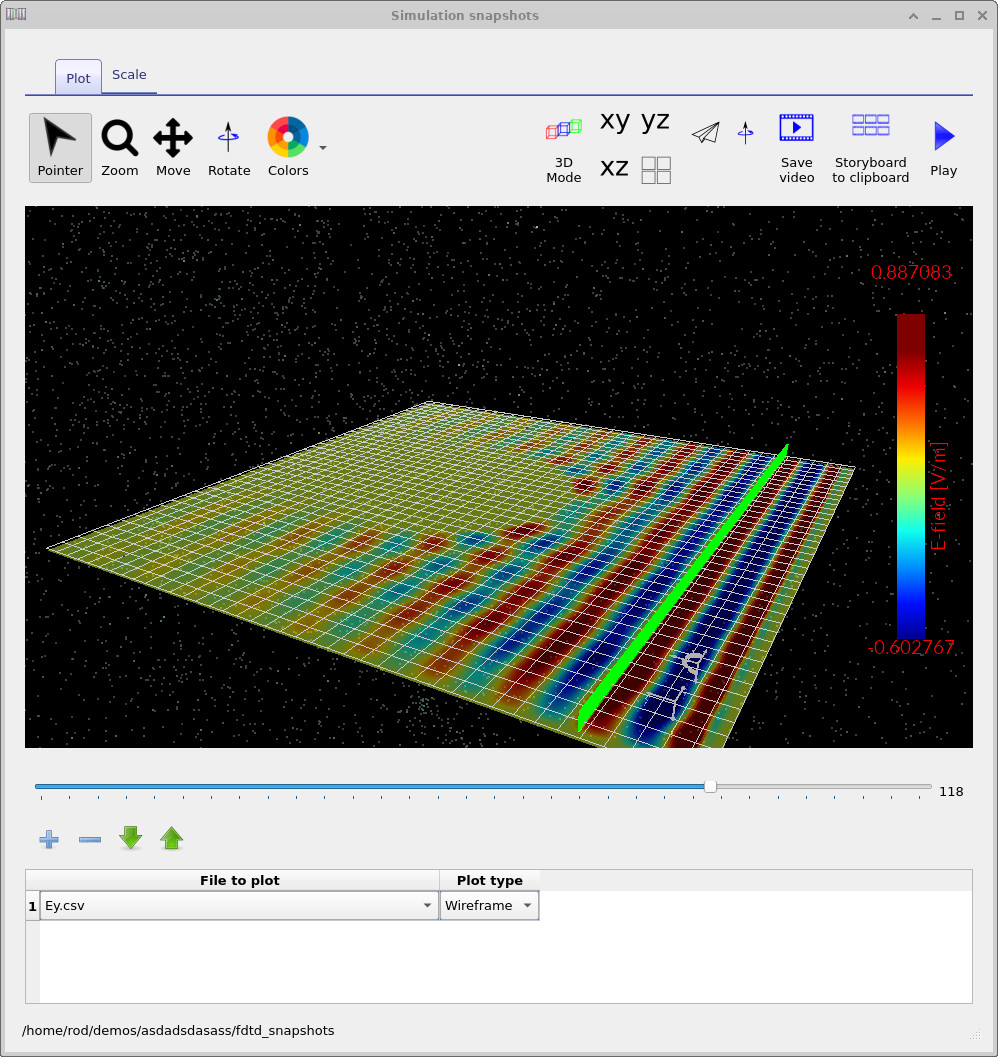
Open the simulation's snapshot output and view power_density.csv in the snapshot viewer. Use the slider to step through the calculation. The images in ?? and ?? show how the power-density pattern evolves as the wave travels through the domain. The repeated bright and dark bands indicate spatial structure in the electromagnetic energy flow; the golf ball disturbs that structure by scattering the incident radiation.
At the earliest stages it is useful to identify the incoming field before it reaches the object. Later snapshots can show the formation of a scattered field and interference between incoming and redirected waves. The colour scale represents power density in W/m². It is important to distinguish a snapshot at one time from the frequency-domain detector results examined later.
5. View the Detector Power and the Scattering Spectrum
In addition to visual snapshots, OghmaNano records electromagnetic fields at detectors. The electric and magnetic vectors determine the instantaneous Poynting vector, which describes the local direction and density of electromagnetic power flow:
\(\mathbf{S}(t)=\mathbf{E}(t)\times\mathbf{H}(t)\)
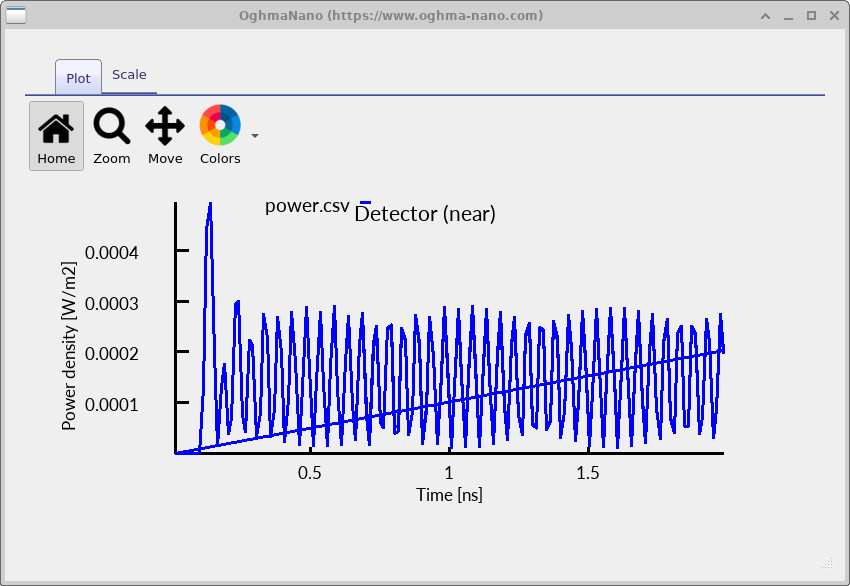
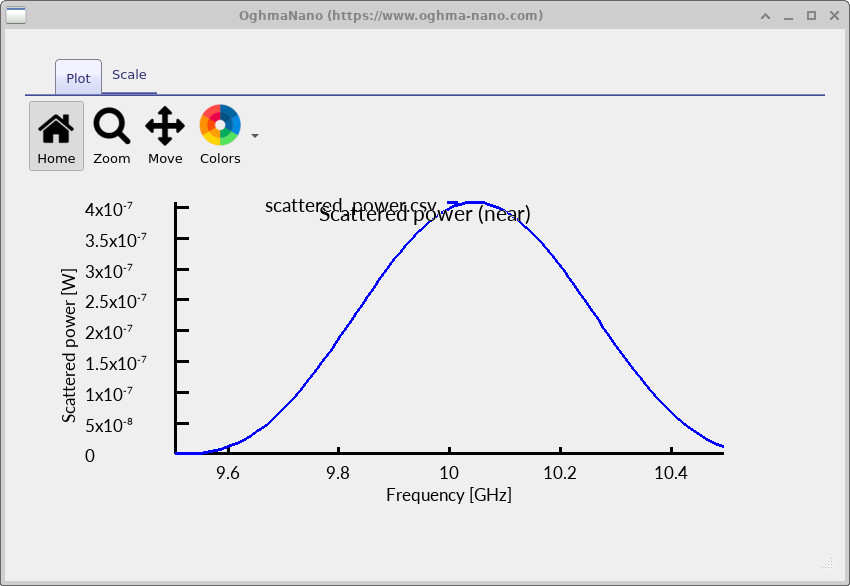
The recorded power can be analysed in time or as a function of frequency. The time-dependent detector trace (??) shows the signal changing as the continuous-wave excitation starts and the calculation develops. The scattering spectrum (??) summarises the detector response near 10 GHz.
Where a reference simulation without the object is available, subtracting its signed detector power flow from the golf-ball result gives a differential response, \(\Delta P(f)=P_{\mathrm{ball}}(f)-P_{\mathrm{air}}(f)\). Such a subtraction measures the change in detected power flow at that detector; it should not automatically be interpreted as the total power scattered in every direction. For frequency-domain complex fields, the time-averaged power density is calculated from \(\tfrac{1}{2}\operatorname{Re}[\mathbf E\times\mathbf H^{*}]\).
6. RF Materials and the Materials Database
The electrical response of an object is determined by the material assigned to it, not simply by how its mesh looks. From the materials database, browse the available RF materials (??). Radio-frequency material datasets describe permittivity versus frequency (Hz, MHz or GHz), rather than wavelength in nanometres as is common in optical examples.
RF datasets may contain the real and imaginary parts of the relative permittivity, often written \(\varepsilon_r'=\operatorname{Re}(\varepsilon_r)\) and \(\varepsilon_r''\) under the adopted sign convention. The real component affects phase velocity and reflections at interfaces; the imaginary component accounts for dielectric losses. When exploring materials, make sure that the frequency range includes 10 GHz and that the imaginary component uses the convention expected by the solver. See also the materials database manual.
7. Explore the 10 GHz Source and Detector Settings
Now that you have run the example, inspect the settings that control the excitation. Open the Optical ribbon (??) to find the electromagnetic simulation tools, including sources, detectors and the optical mesh. Although these controls retain optical terminology, the same FDTD infrastructure is used for RF calculations.
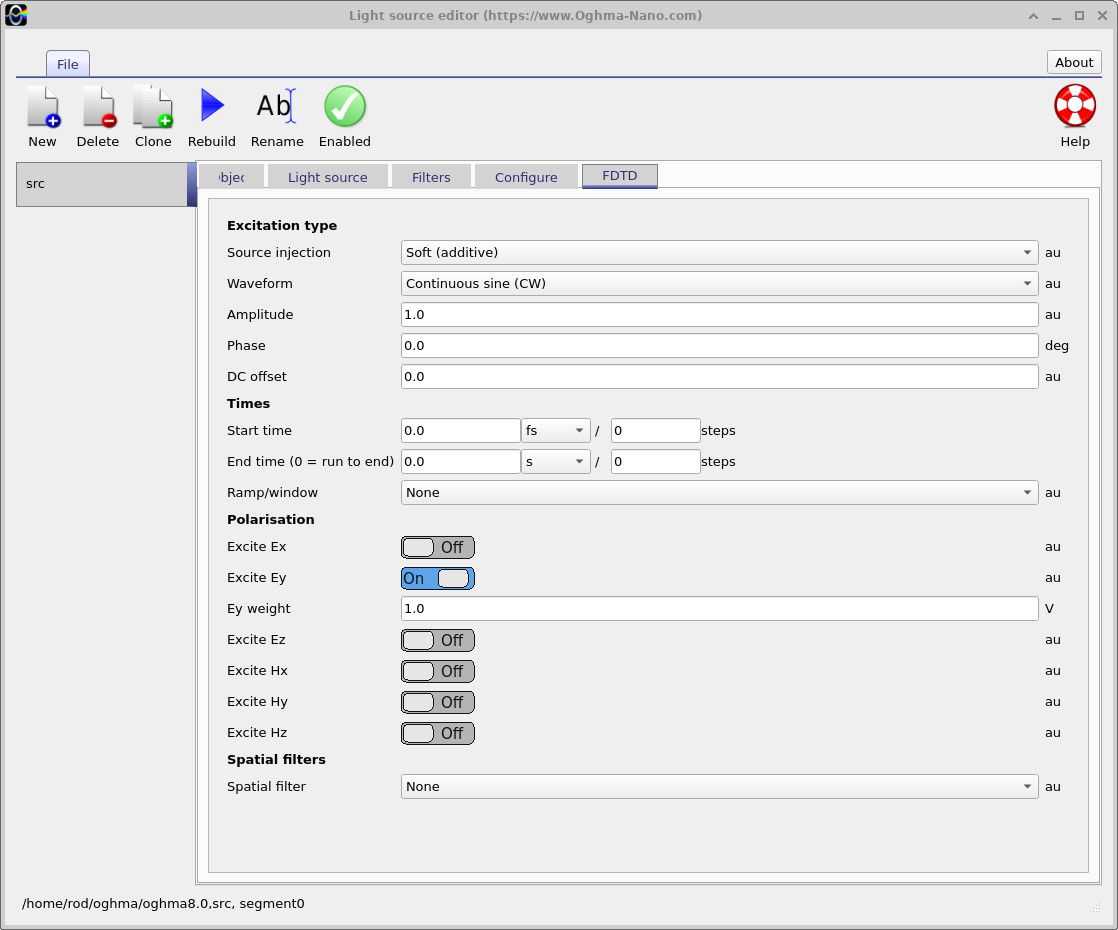
Open the light source editor and select the FDTD tab (??). The example shown uses a soft (additive) injection with a continuous sine (CW) waveform. It also exposes amplitude, phase, start and end times, ramp/window settings and independent Ex, Ey, Ez, Hx, Hy and Hz excitation switches. In the screenshot, Ey is enabled and the other components are off. These settings determine how the electromagnetic field is launched, including its polarisation.
Open the detector editor (??). On its Frequency mesh tab, the illustrated detector uses a frequency range of 9.50–10.50 GHz, with 100 points. This gives a set of frequency samples around the 10 GHz excitation. Detector sampling and the source waveform are different settings: changing the detector frequency range does not itself change the radiation that enters the simulation.

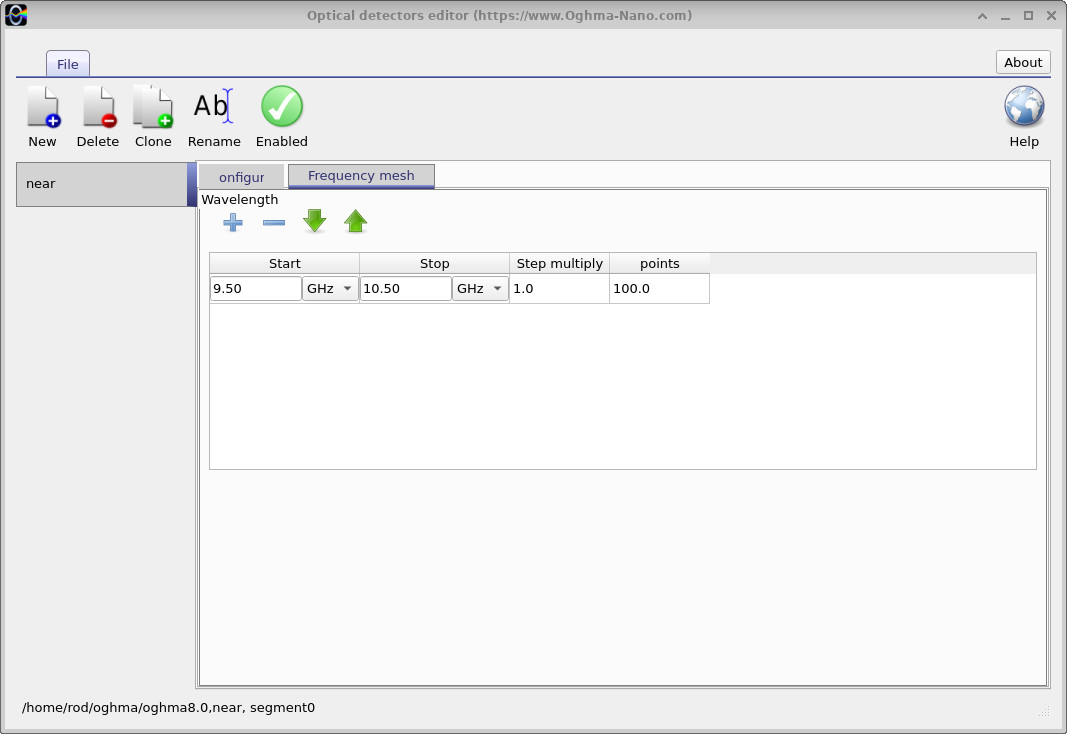
For additional background, see FDTD sources and FDTD detectors.
8. Set the Optical Mesh and the Simulation Size
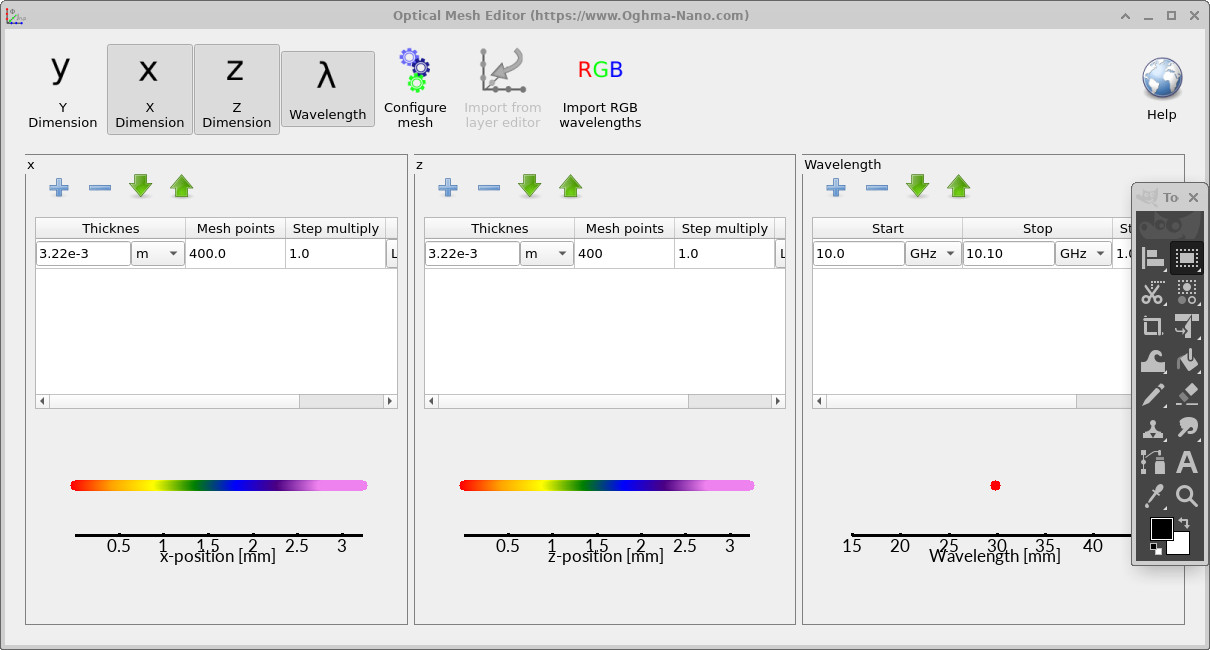
The numerical mesh determines the spacing at which OghmaNano solves Maxwell's equations. Open the Optical mesh editor from the Optical ribbon. The window is shown in ??. It contains separate controls for the X, Y and Z dimensions and for Wavelength. The frequency/wavelength entry in the supplied screenshot has a single point at approximately 10 GHz (the editor shows a small range from 10.0 to 10.10 GHz); it is separate from the detector's broader 9.50–10.50 GHz sampling window.
The spatial entries specify the width of each mesh segment and the number of points allocated to it. Reducing the spacing generally improves the resolution of the ball and the field but increases the memory and time needed for a three-dimensional calculation. A useful starting criterion is to resolve the shortest relevant wavelength inside the materials with several cells; small dimples may require an even finer grid. Always check that results remain stable when the mesh is refined.
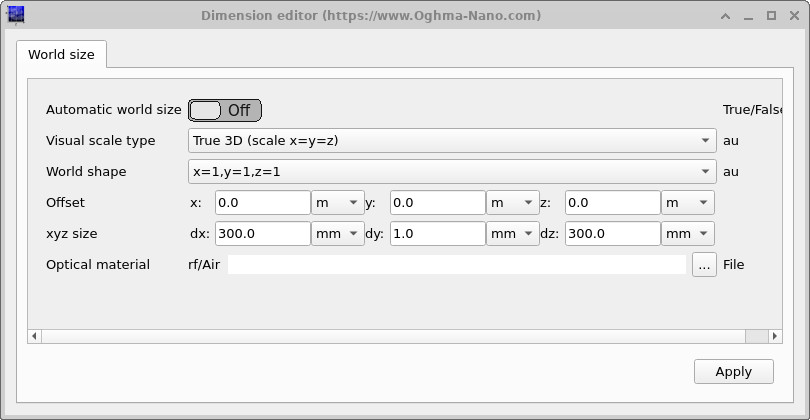
There is a second, related setting: the simulation domain size. Open the Substrate XY size button to access the dimension editor, shown in ??. Here you can change the world offset and the total dimensions along X, Y and Z. The dimensions defined here must match the combined spatial extents specified in the optical mesh editor. Otherwise you risk building a mesh that does not cover the intended world or that samples it inconsistently. The example values displayed in these screenshots illustrate the editors; use the dimensions saved in your actual golf-ball project when running the tutorial.
💡 Important: When resizing the domain, update both Substrate XY size and the Optical mesh. Also check that the ball, source, detector and absorbing boundaries remain inside the computational region. The world size and the spatial mesh are two descriptions of the same physical domain.
9. Replace the Golf Ball with a Teapot
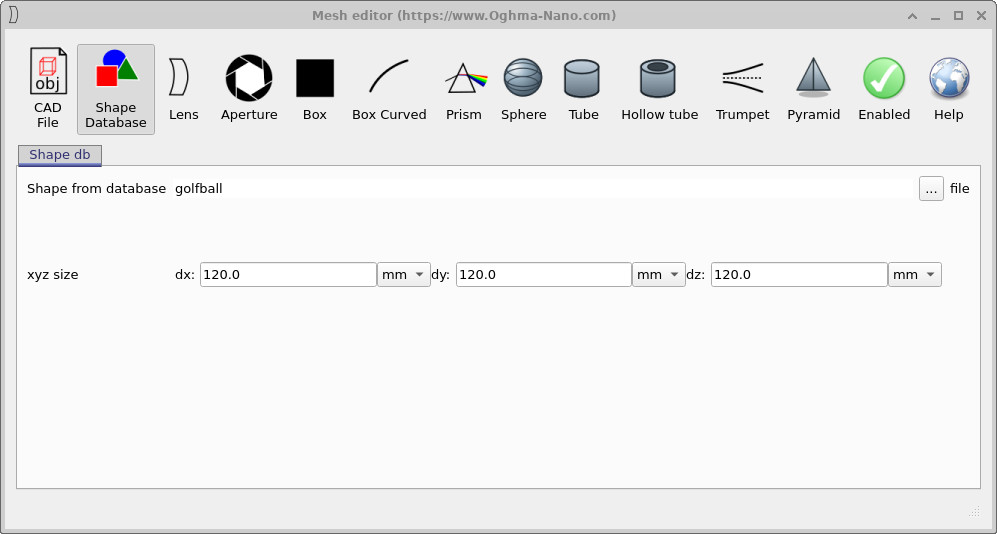
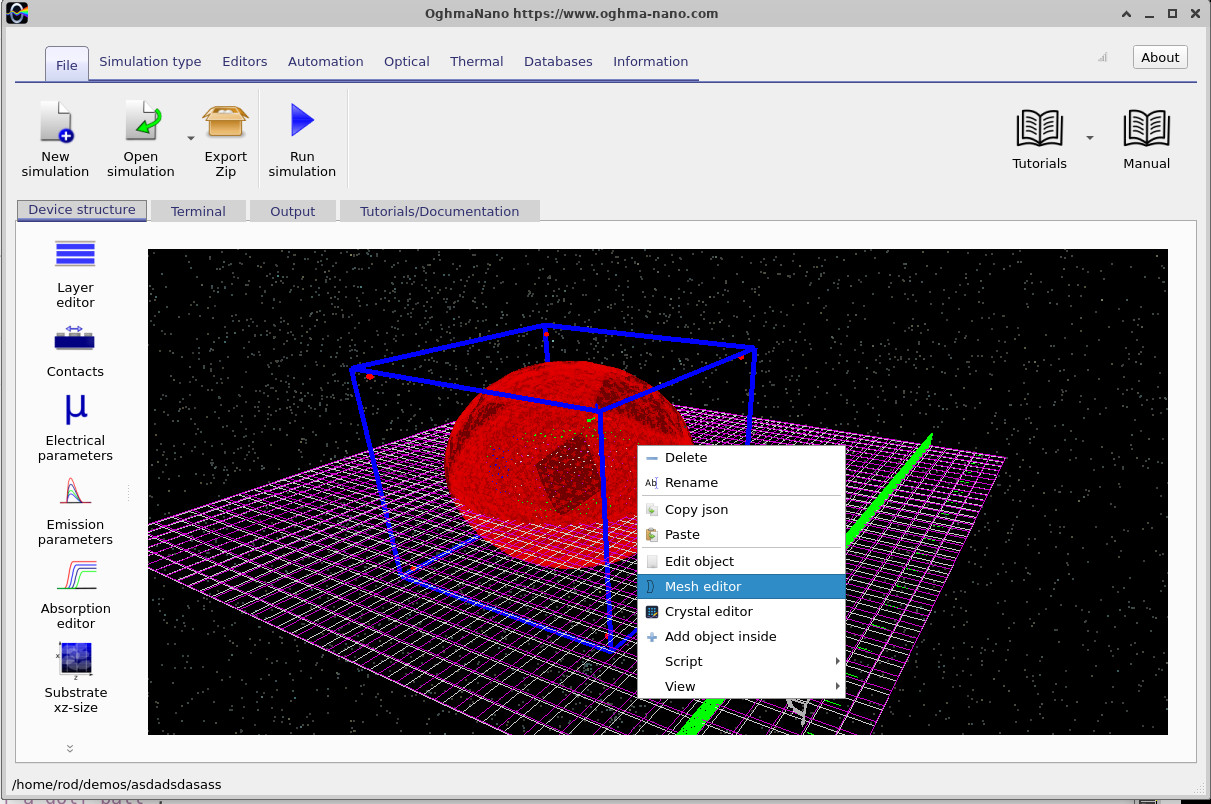
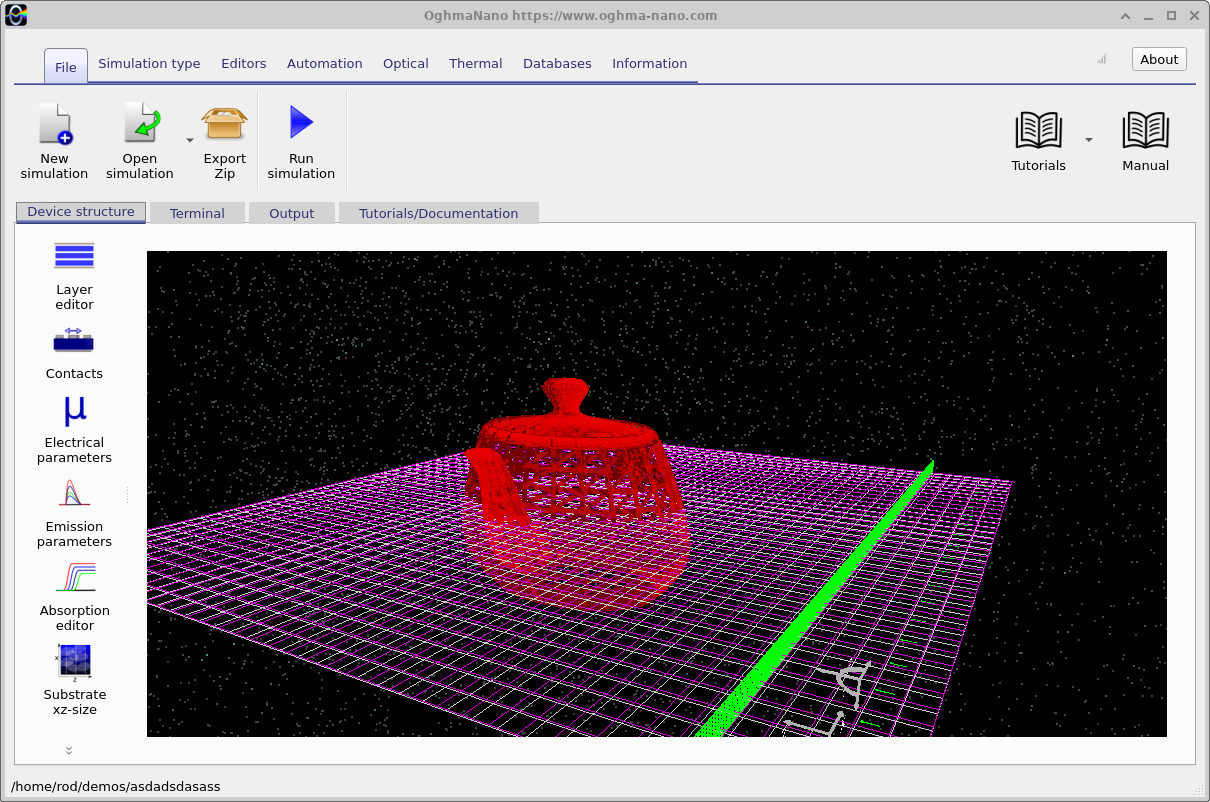
The same RF setup can be reused with a very different object. Return to the main 3D view and right-click the golf ball (??). Use the available object or mesh-editing controls to substitute the golf-ball geometry with the supplied teapot shape. The example replacement model is visible in ??. Its curved body, spout, handle and lid provide a recognisable scattering target with a substantially different silhouette.
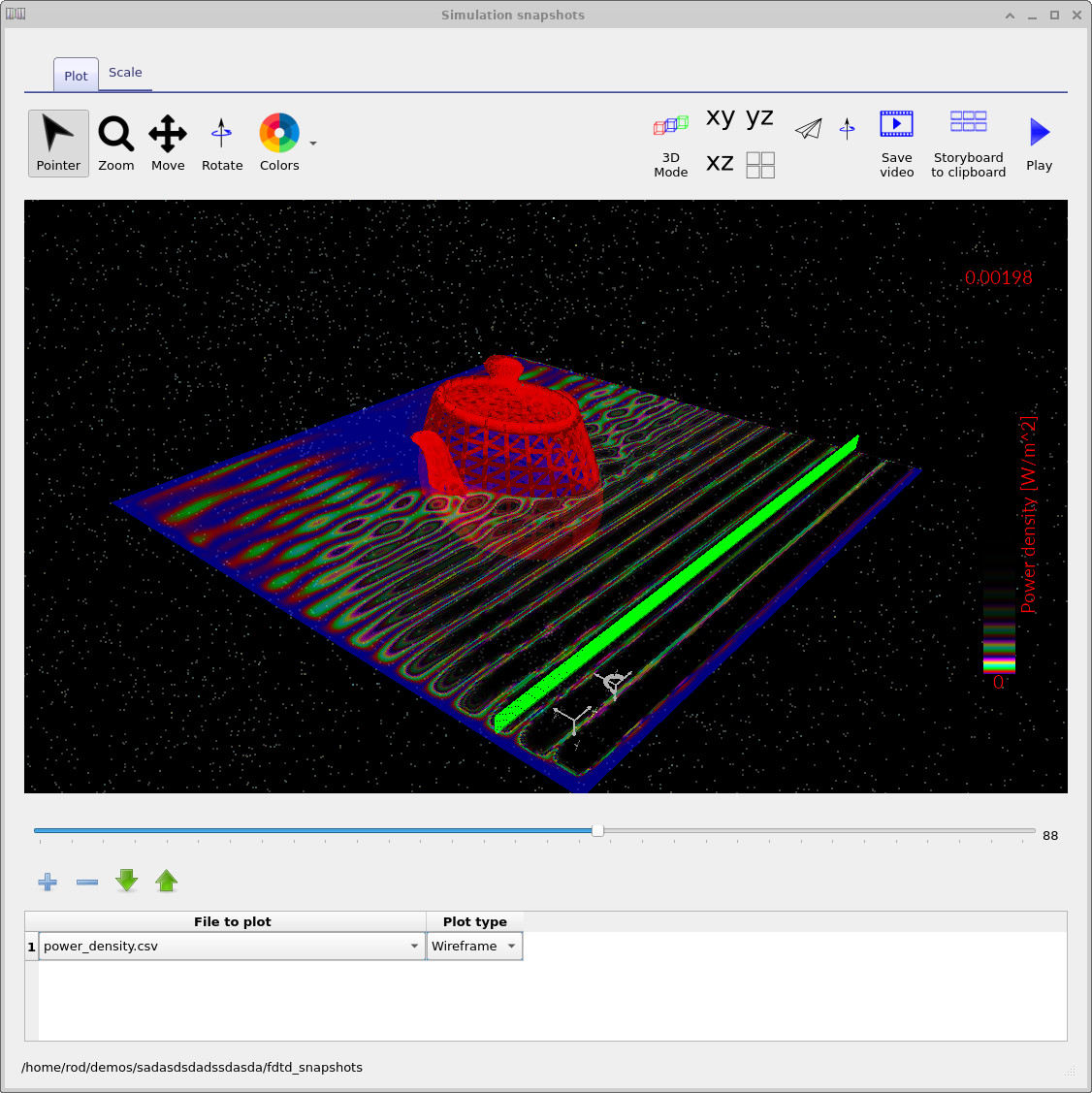
Check that the imported object remains inside the simulation boundaries, then run the simulation again. The new geometry is shown in the snapshot result (??). You should see the incident wave interacting with the teapot and a different spatial distribution of reflected and transmitted electromagnetic energy. This demonstrates that the solver is not tied to a particular built-in shape: the same source, detector and field visualisation workflow applies to more general triangle meshes.
10. Interpreting the Results and Limitations
The field plots show how the incident electromagnetic wave interacts with the object and how the resulting power-density pattern varies through the domain. The detector traces provide a complementary quantitative measurement. Comparing the golf ball and teapot at the same frequency, with the same source, detector, material assignment and numerical resolution, lets you isolate the effect of changing the geometry.
These are demonstration models, so the result should not be taken as an experimentally validated radar cross section. The predicted response depends on the dielectric or conducting properties assigned to the imported solid, the mesh resolution, boundary conditions and the placement of the detector. In particular, a solid-dielectric model of a teapot need not behave like a hollow ceramic teapot. For quantitative scattering results, test convergence and use an appropriate background/reference calculation.
11. Useful Outputs and Further Experiments
The Output tab (??) contains the computed data. The exact filenames can depend on the example and OghmaNano version; the files and interfaces used in this tutorial are summarised below.
| Result or tool | Purpose |
|---|---|
power_density.csv (snapshots) | Spatial power-density distribution at successive simulation times. |
| Detector power trace | Shows the measured signal as the FDTD simulation evolves. |
| Frequency-domain detector result | Used to inspect power or scattering response near 10 GHz. |
| Optical mesh editor | Sets spatial discretisation and the simulation wavelength/frequency mesh. |
| Substrate XY size / dimension editor | Sets the domain size and offset; must agree with the optical mesh extents. |
| FDTD source editor | Configures injection, waveform, amplitude, timing and polarisation. |
| FDTD detector editor | Configures detector position and frequency sampling. |
To explore scattering at a larger physical scale, continue with Radio-Wave Scattering from Stonehenge. To learn how FDTD excitation and measurement work more generally, see FDTD light sources and detectors.