

Photonic Crystal Tutorial: Simulate a Photonic Crystal and Waveguide
1.Introduction to Photonic Crystals and Waveguides
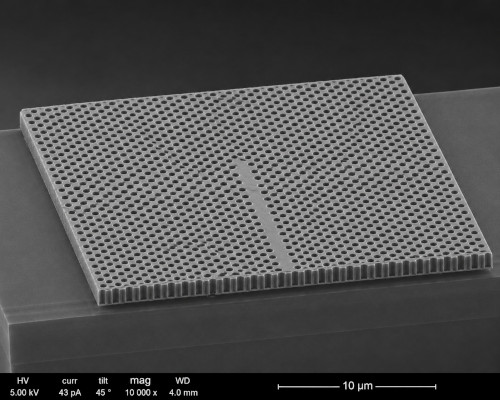
A photonic crystal is an optical structure whose refractive index varies periodically on the scale of the wavelength of light. A common example is a dielectric slab patterned with a regular array of air holes, as shown in ??. This periodic structure creates a photonic band gap, a range of wavelengths that cannot propagate through the crystal. In many ways this is analogous to the electronic band gap found in semiconductors, except that it affects photons rather than electrons. By introducing a deliberate defect into the lattice, such as removing a row of holes, it becomes possible to create optical modes inside the band gap. Light can then be confined and guided through the defect region, even around sharp bends with very low loss. These photonic crystal waveguides form the basis of many integrated photonic devices including optical interconnects, resonators, filters, sensors, and wavelength-selective components.
In this tutorial you will use OghmaNano's finite-difference time-domain (FDTD) solver to build and simulate a two-dimensional photonic crystal. You will learn how to generate a periodic lattice using the step editor, launch light into the structure using FDTD light sources, visualise the electromagnetic field distribution, and calculate the transmission spectrum as a function of wavelength using FDTD detectors and spectral extraction. By changing the lattice geometry you will see how the photonic band gap shifts, and by introducing a defect you will create a photonic crystal waveguide and observe guided light propagation through the structure.
Photonic crystals are widely used in modern integrated photonics because they provide precise control over the flow of light while occupying only a small area on a chip. Understanding how photonic band gaps arise and how defects can be used to manipulate optical modes is therefore an important step towards designing advanced photonic devices.
2. Creating a New Photonic Crystal Simulation
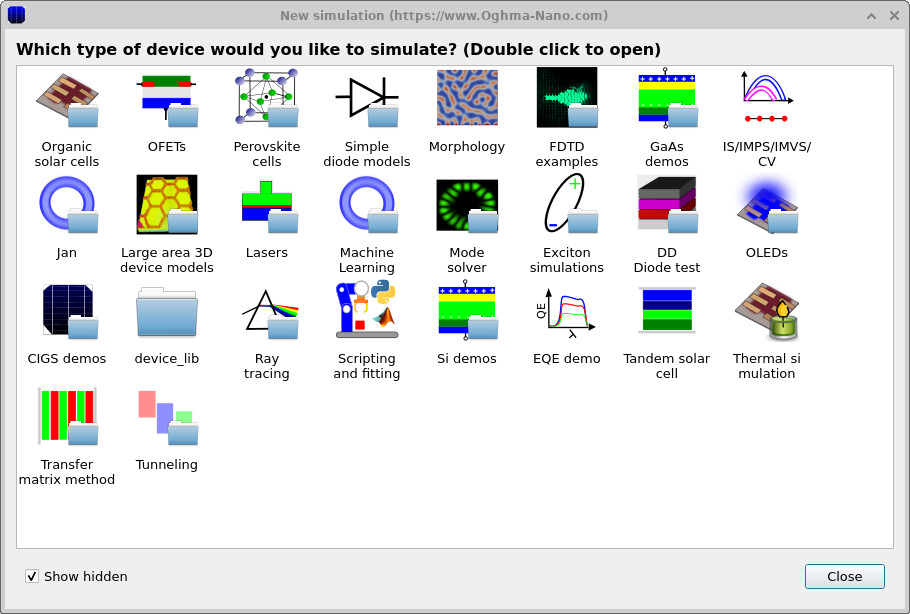
Start OghmaNano from the Windows Start menu, then click New simulation to open the library of available device types, shown in ??.
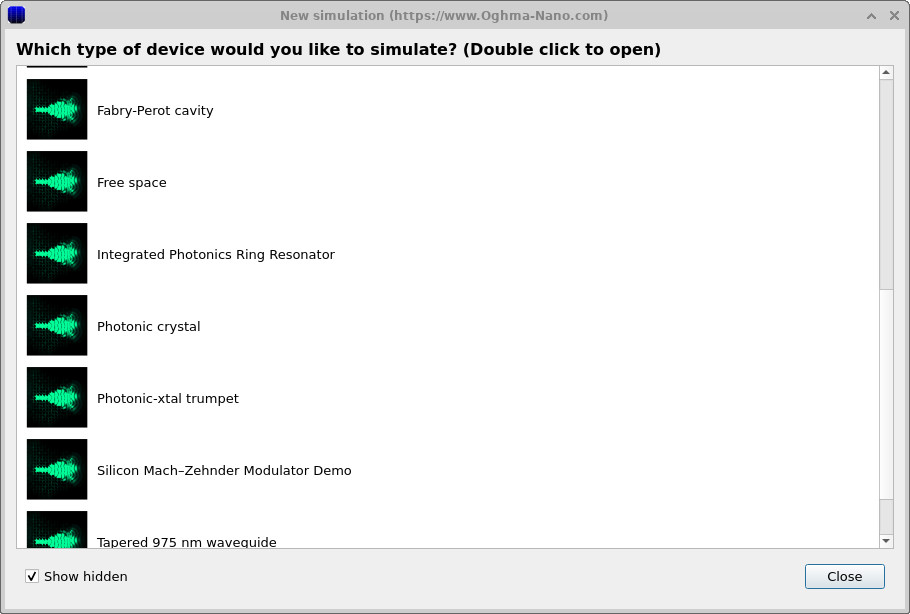
In the New simulation window (??) double-click FDTD examples. This opens the list of optical/FDTD templates shown in ??, which includes a Fabry–Perot cavity, free space, an integrated photonics ring resonator, a Mach–Zehnder modulator and several waveguides. For this tutorial double-click Photonic crystal. When prompted, save the simulation to a folder you have write access to.
💡 Tip: For best performance save to a local drive such as
C:\. Simulations stored on network, USB, or cloud folders
(e.g. OneDrive) can run slowly due to heavy read/writes.
3. Run the simulation
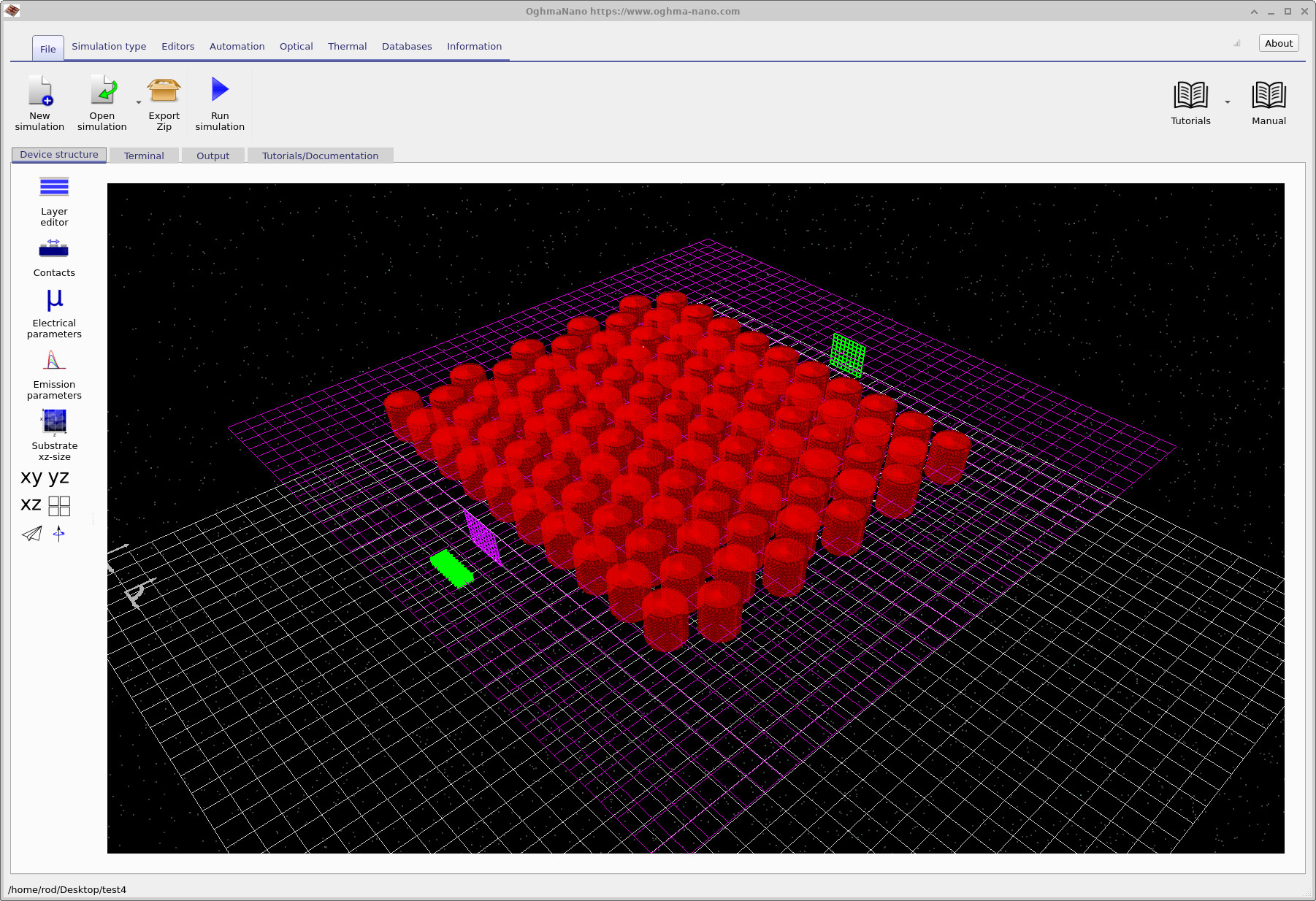
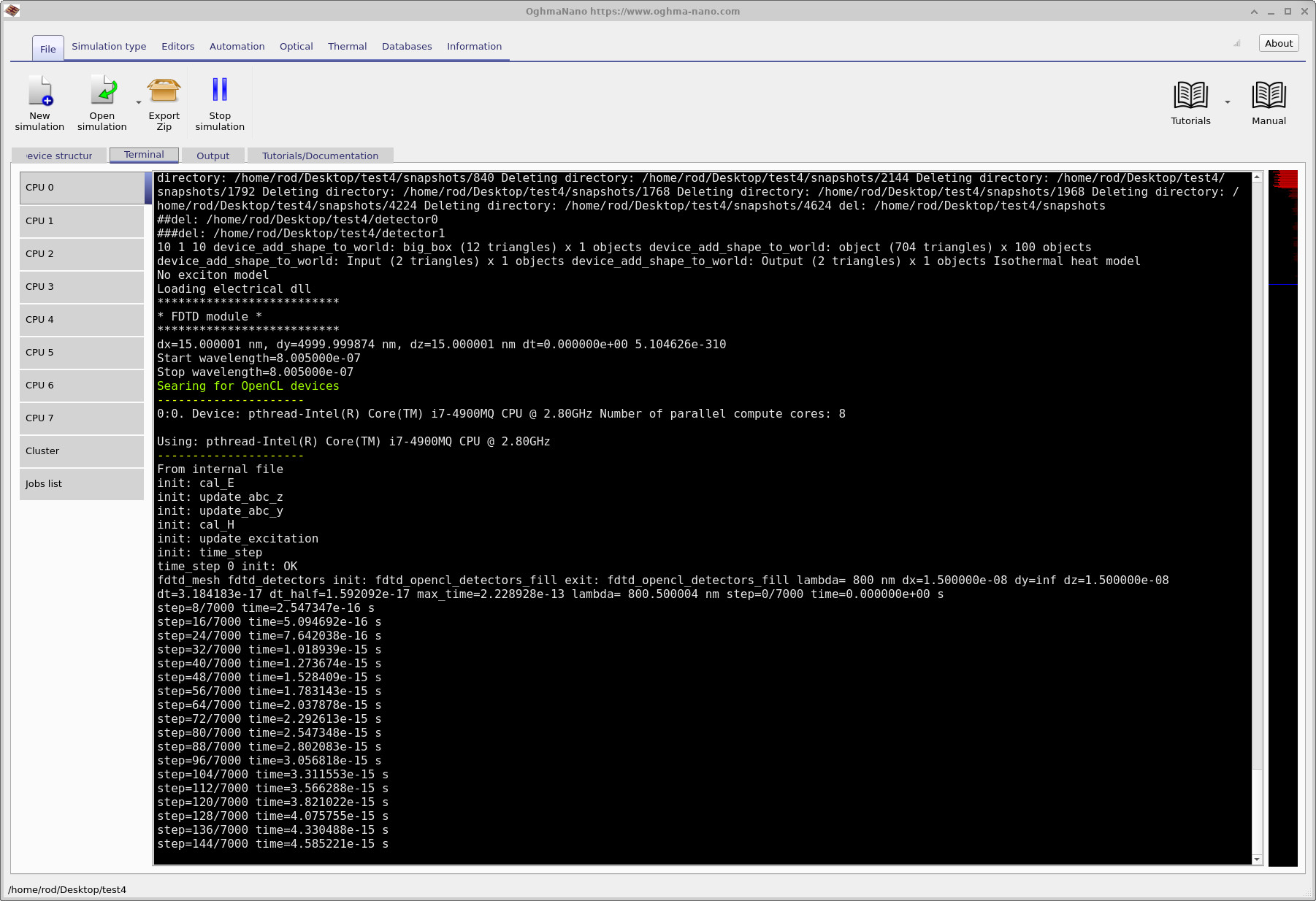
Once saved, the main window opens (see ??). The device is an array of dielectric pillars (the red tubes) sitting between two thin detector planes: a purple input detector near the source and a green output detector on the far side. Use the xy/yz/xz buttons to orient the view. Click Run simulation (the blue play icon) or press F9. On slower machines the FDTD calculation may take a little while.
When the run finishes, open the Output tab (??) to browse the files the solver has written. Double-clicking any file opens it in the appropriate viewer.
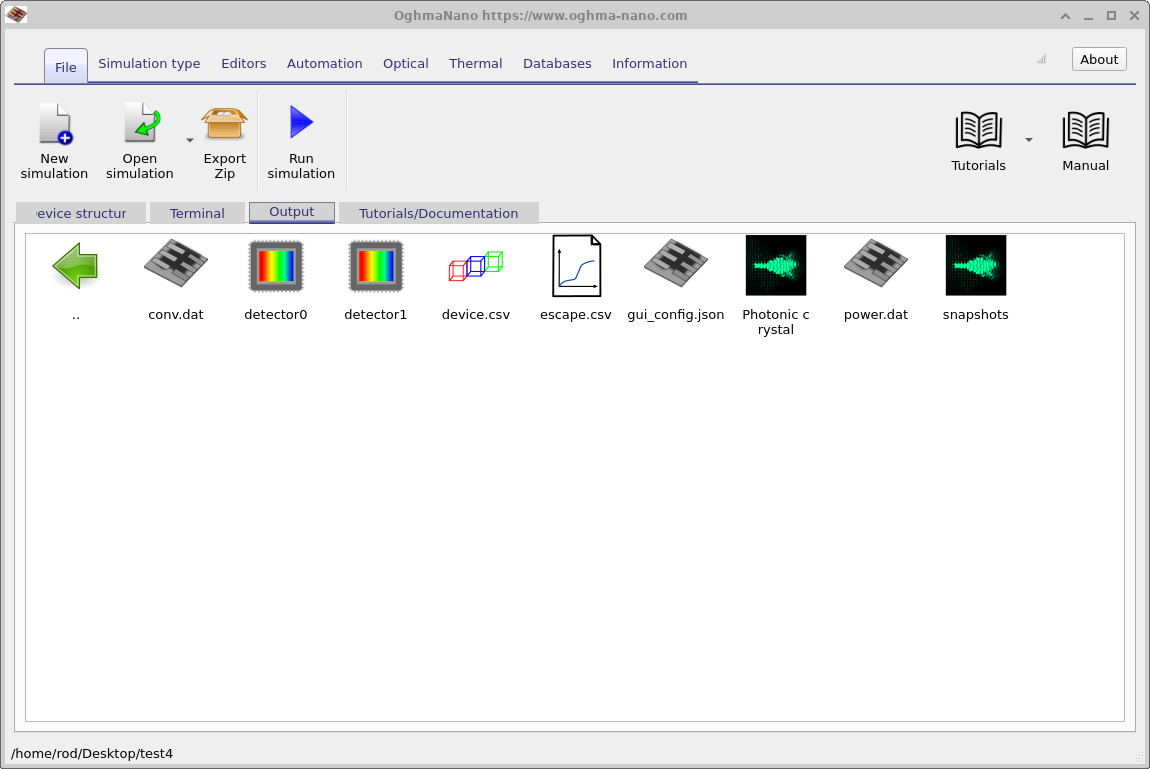
snapshots folder (time snapshots of the field), and the detector0 and detector1 folders, which hold the spectra recorded by the input and output detectors.
Double-clicking a file or folder opens it.
4. Watch the field propagate
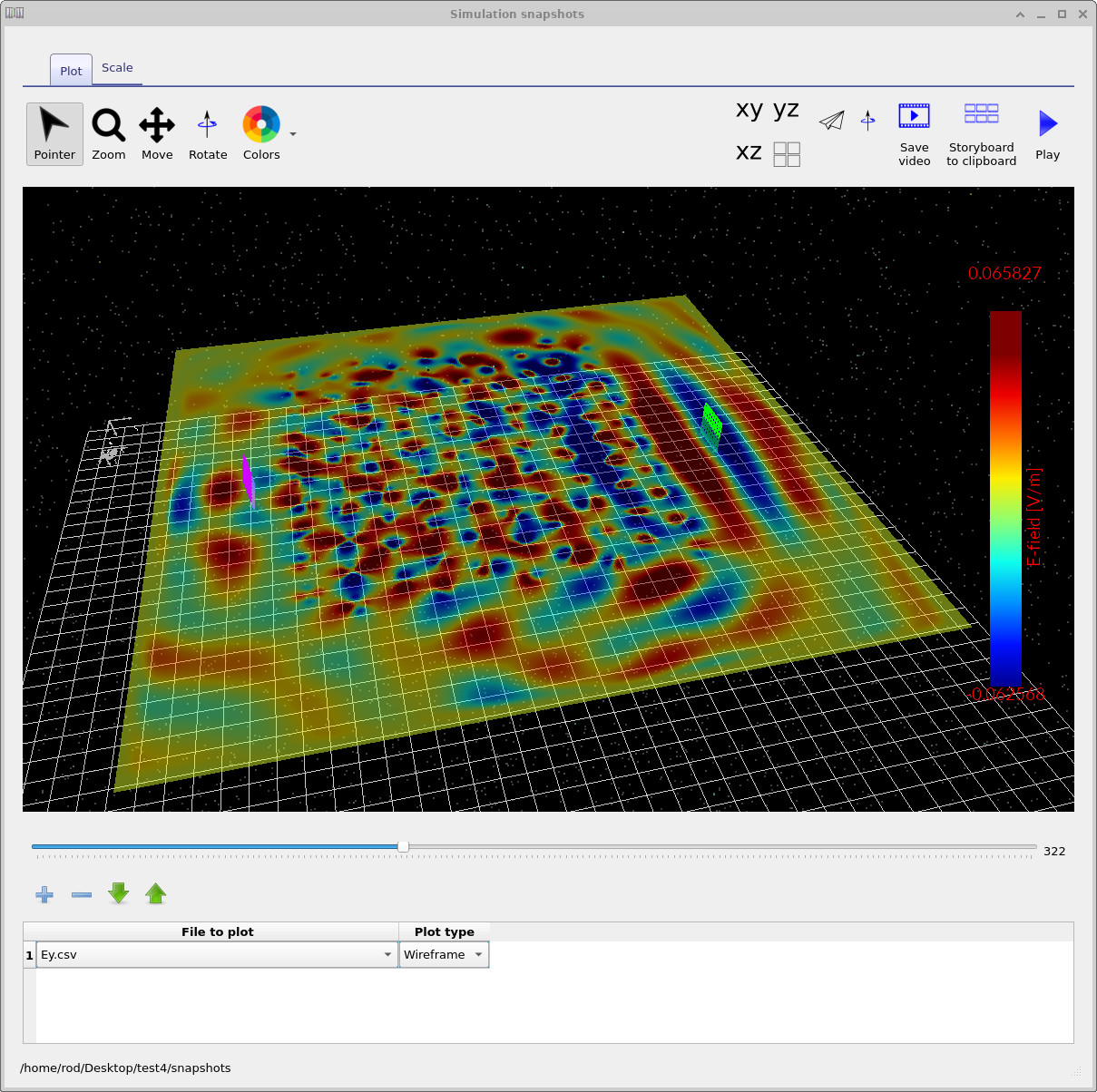
Double-click the snapshots folder to open the snapshot viewer (??).
The plotted file is Ey.csv — one component of the electric field — shown as a coloured wireframe surface, where colour and height both encode the field strength in V/m.
Drag the slider underneath the plot to step through time. You will see the launched pulse spread out from the source on the left, strike the photonic crystal, and partially scatter and transmit through it. Watching the field evolve is the most intuitive way to confirm the simulation is doing what you expect before you trust the numbers.
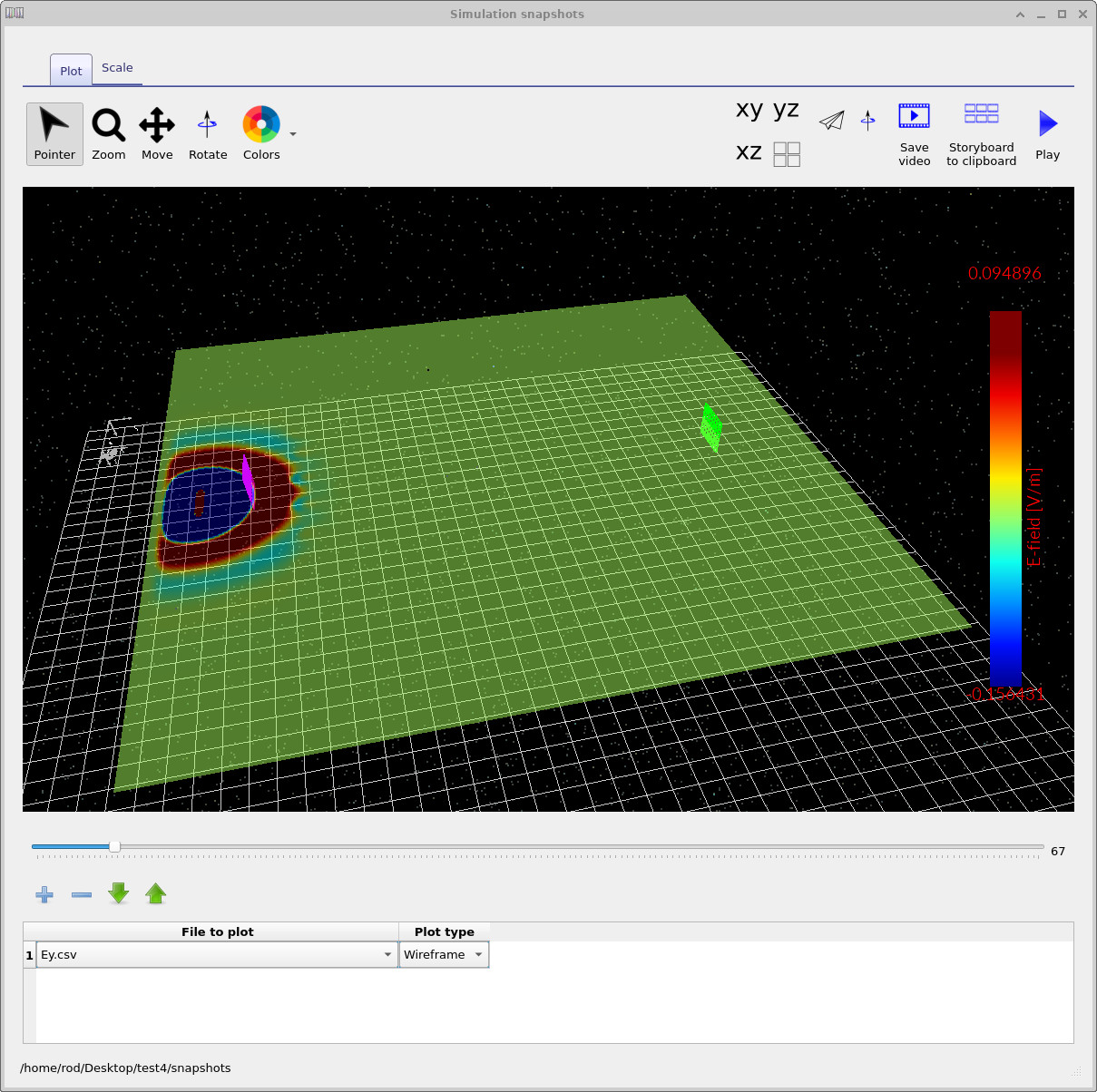
Ey.csv as a wireframe.
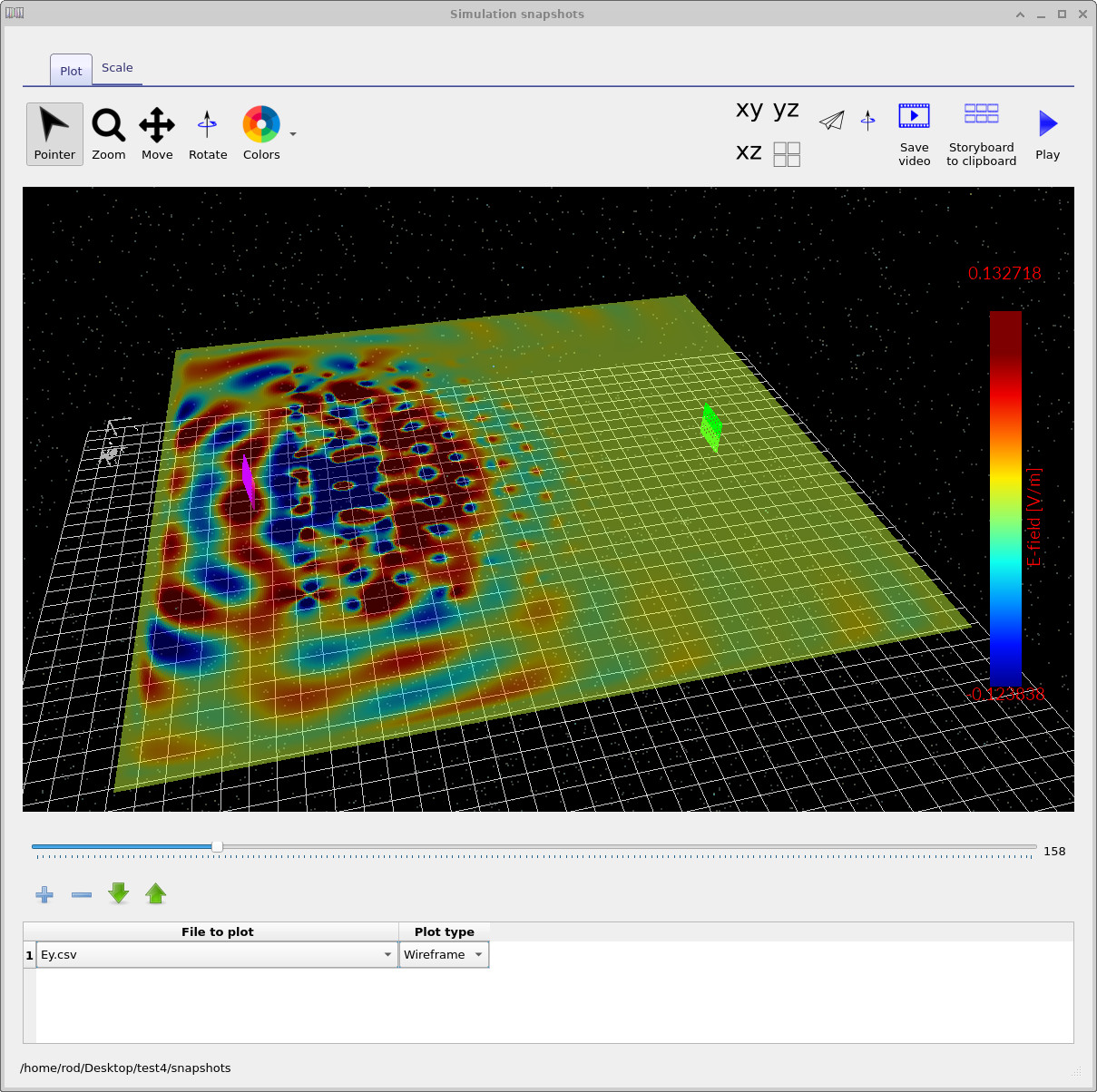
5. Detectors and the transmission spectrum
Now look at what the two detectors recorded. From the Output tab open the detector0 and detector1 folders; each contains a file called lam_E.csv, which is the wavelength-resolved field intensity |E|2 arriving at that detector.
The two detectors are the purple and green grids you can see in the device view.
Opening lam_E.csv in detector0 gives the input spectrum (??): this is the broadband pulse launched at the structure, with most of its energy around 900 nm.
Opening lam_E.csv in detector1 gives the output spectrum (??), plotted on a logarithmic axis. Notice how heavily the light is attenuated at most wavelengths — the photonic crystal blocks them.
Comparing two raw spectra by eye is awkward, so the detector folder also contains lam_norm.csv, the ratio |EOutput|2/|EInput|2. This is the transmission spectrum of the photonic crystal. Double-click it to obtain ??.
The clear peak just above 1000 nm is the band of wavelengths the photonic crystal lets through; the strongly suppressed regions on either side are the photonic band gap, where propagation is forbidden. In other words, this single curve tells you both what the crystal transmits and where its band gap sits.
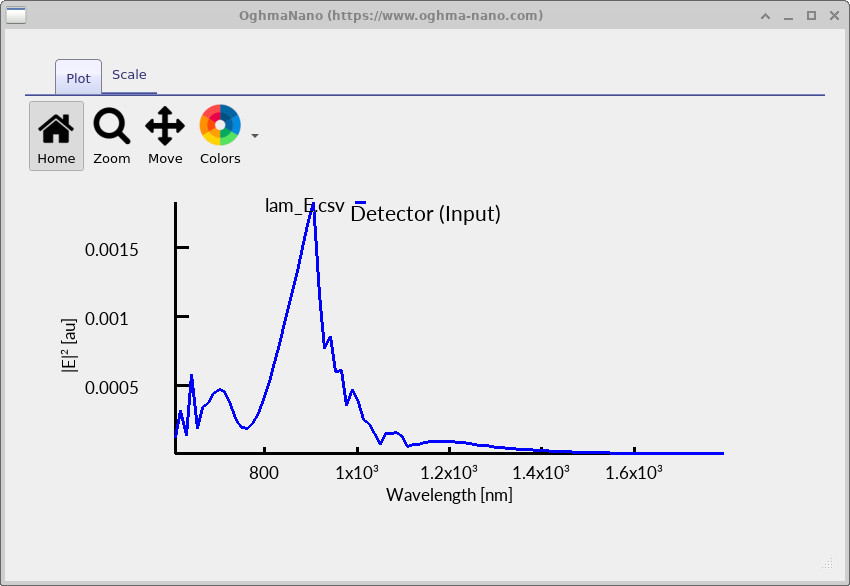
detector0/lam_E.csv): the broadband pulse incident on the crystal, peaking near 900 nm. This is the reference against which the output is compared.
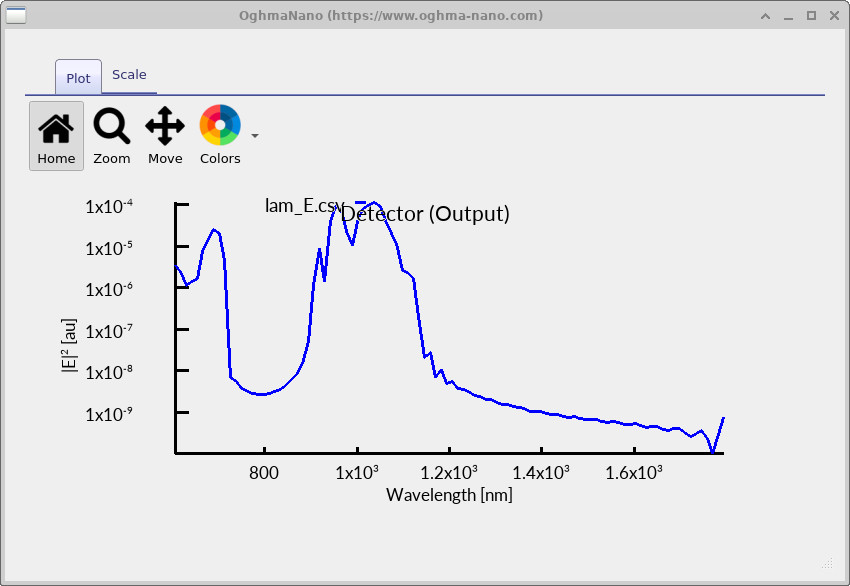
detector1/lam_E.csv) on a log scale. Most wavelengths are suppressed by several orders of magnitude because they fall inside the photonic band gap.
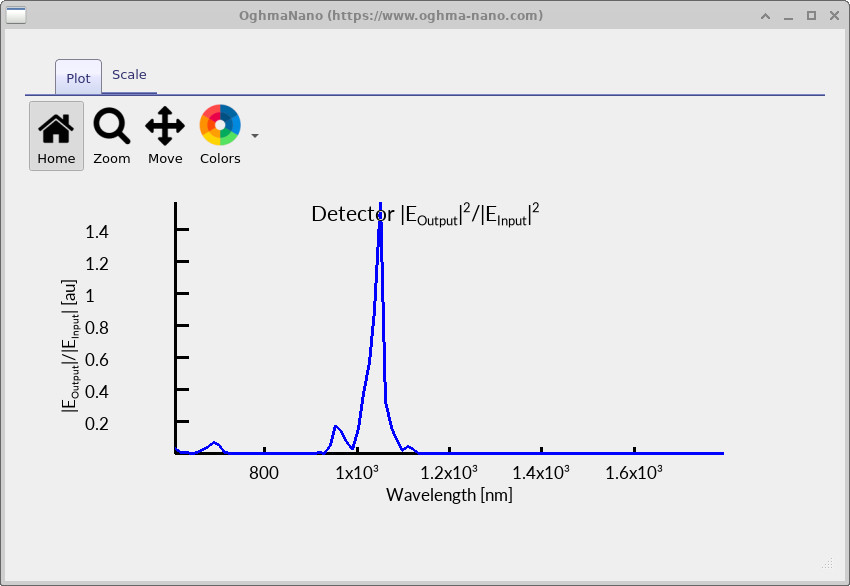
lam_norm.csv.
The peak just above 1000 nm marks the wavelengths the photonic crystal transmits; the suppressed wavelengths lie inside the photonic band gap.
6. Tuning the pillar radius
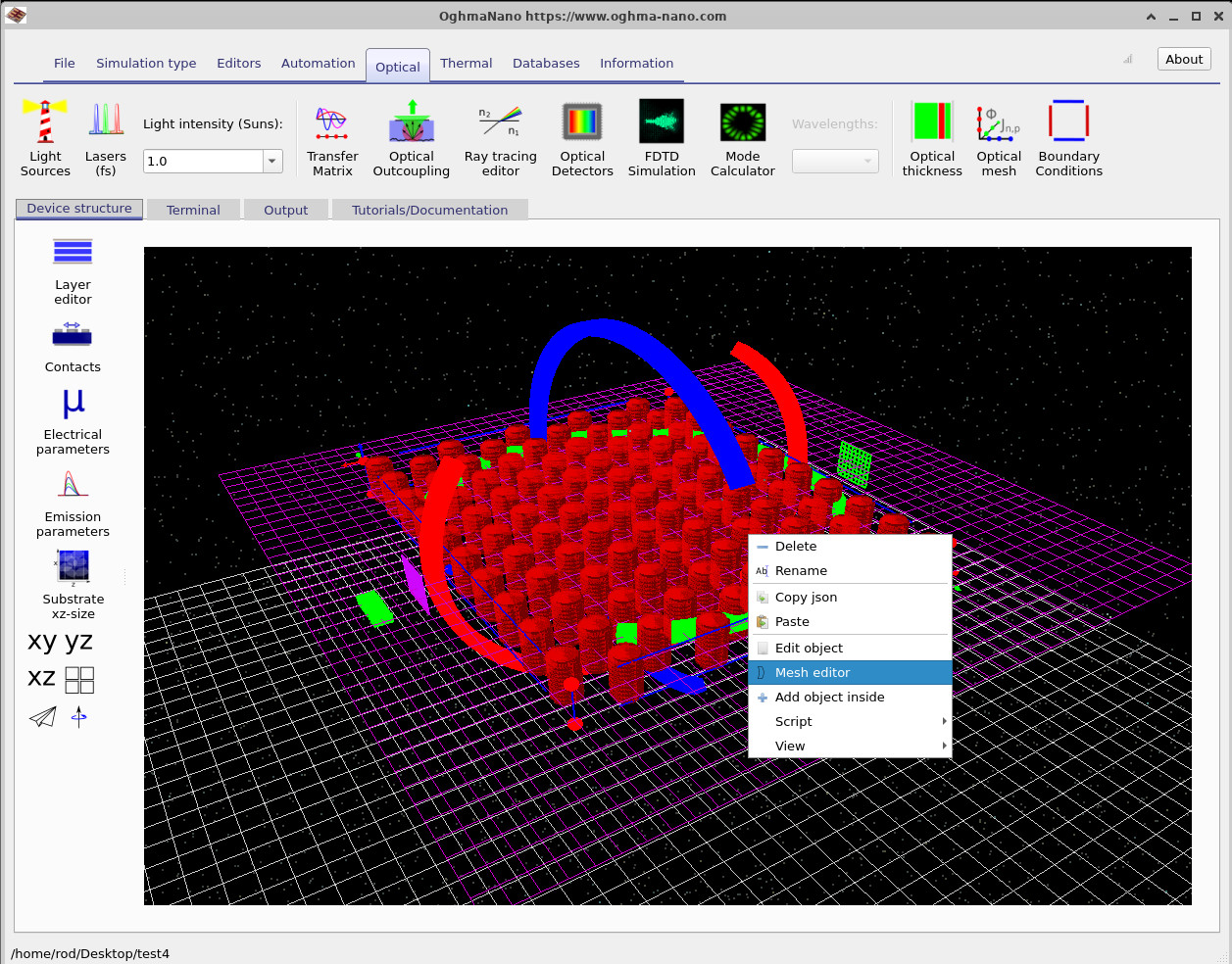
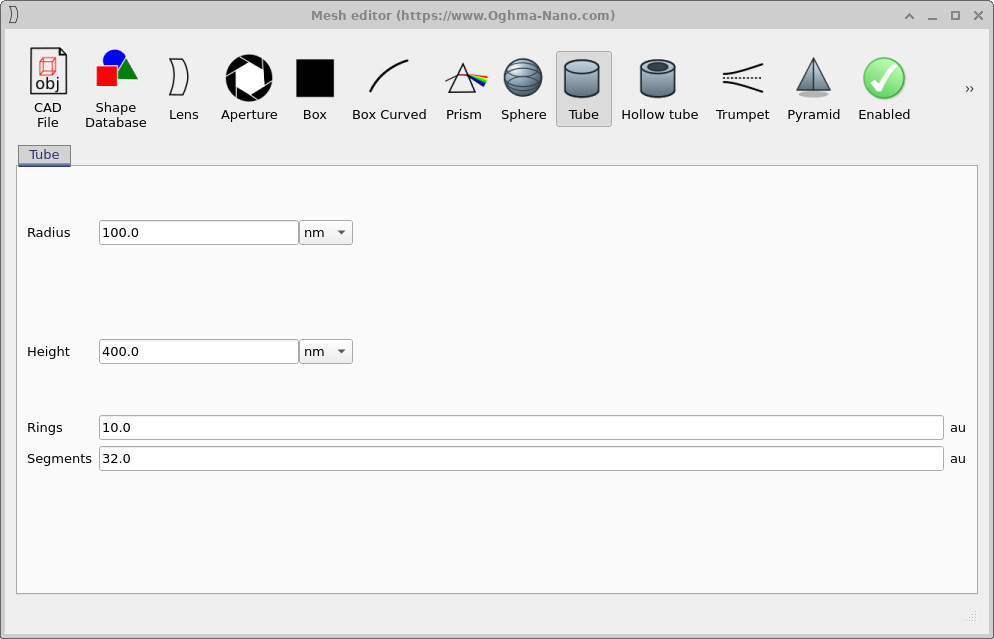
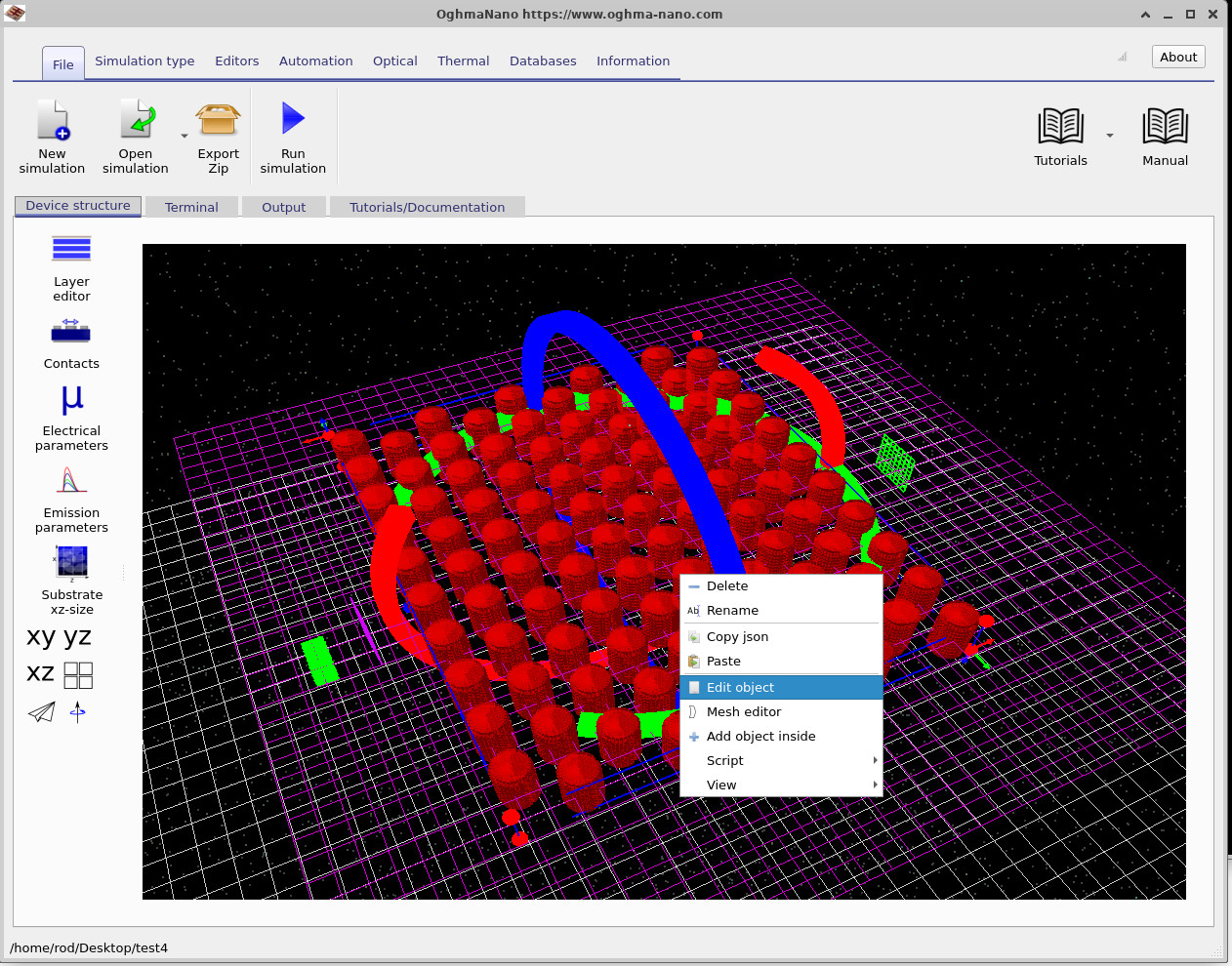
The position of the band gap is set by the geometry of the lattice. To see this, right-click on the photonic crystal in the device view and choose Mesh editor from the menu (??). The mesh editor (??) lets you change the shape that is repeated to build the crystal — here a tube with a radius of 100 nm, a height of 400 nm, and a chosen number of rings and segments controlling how finely it is meshed.
Change the pillar radius to 150 nm. The pillars become visibly thicker in the device view (??). Re-run the simulation and open lam_norm.csv again to generate the updated transmission spectrum (??).
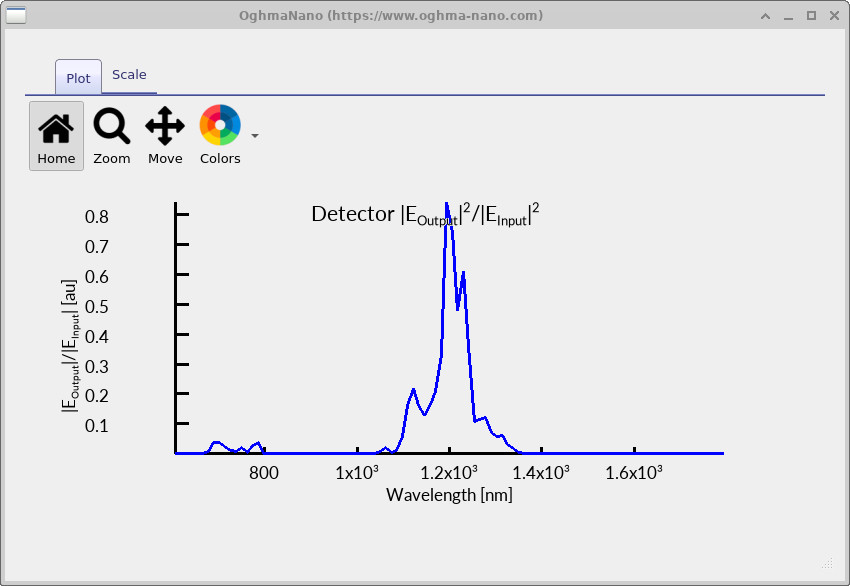
Next, set the radius to 120 nm and repeat the simulation. The resulting transmission spectrum (??) now peaks near 1200 nm, lying between the original 100 nm result and the 150 nm case. The trend is clear: increasing the pillar radius shifts the photonic bands towards longer wavelengths. By adjusting a single geometric parameter, you can tune the position of the photonic band gap and the wavelengths transmitted by the crystal.
7. Building a photonic crystal waveguide
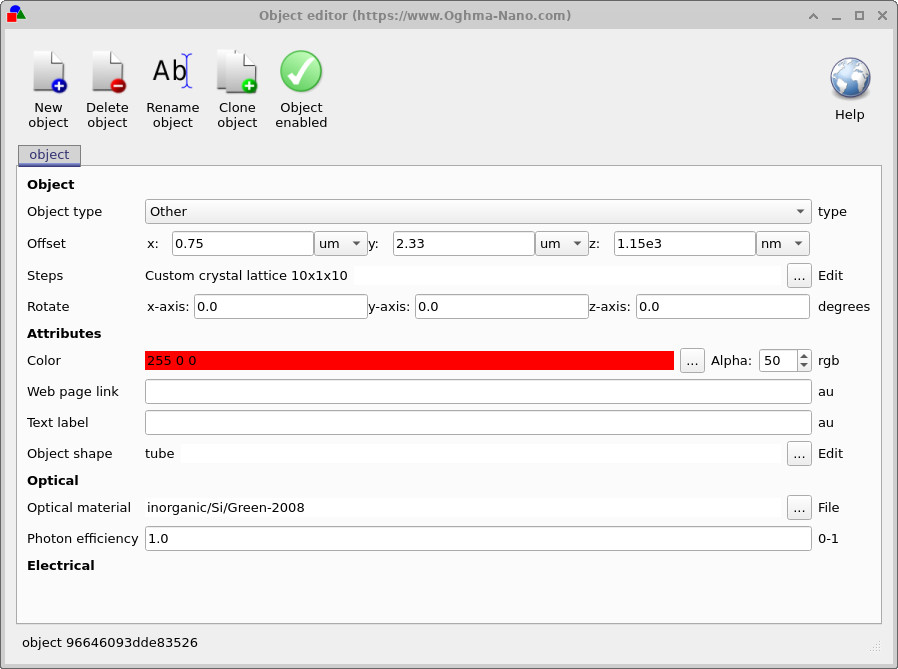
So far the lattice has been generated for you. To see how, and to take control of it, right-click the photonic crystal and choose Edit object (??). The object editor (??) collects everything about the object: its position, the tube shape, its optical material (here silicon), and — on the Steps row — the rule that stamps the shape out into a lattice. Click the … button on this row to open the step editor, where crystal lattices, repeated structures, and scripted geometries can be created and modified.
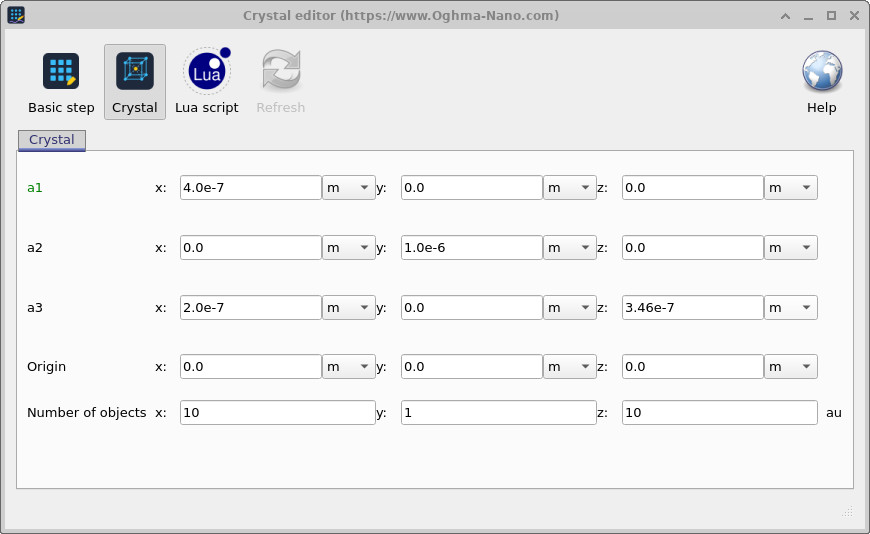
Clicking the … button on the Steps row opens the step editor. On the Crystal tab (??) the lattice is defined by three vectors and a count. Here a1 = (400 nm, 0, 0) sets a 400 nm pitch along x, a2 = (0, 1 µm, 0) is the single layer in y, and a3 = (200 nm, 0, 346 nm) offsets each row by half a pitch — a 200 nm shift with a 346 nm = 400 nm × √3/2 spacing — which produces the familiar triangular (hexagonal) close-packed arrangement. The crystal is repeated 10 × 1 × 10 times.
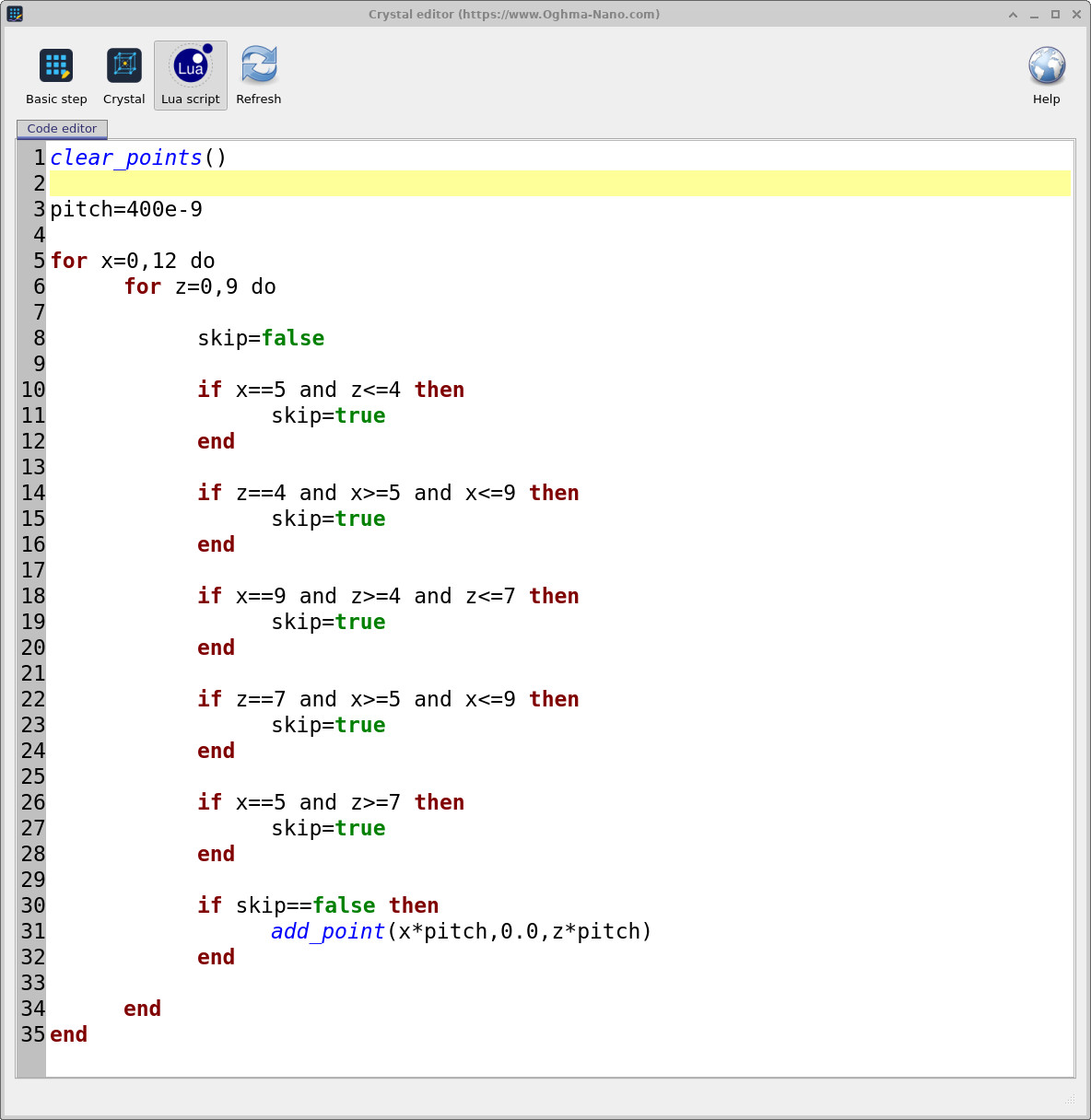
clear_points() and add_point(), and all coordinates are specified in metres.
A regular lattice is the simplest case, but it is far from the only possibility. Click the Lua script button and the editor switches to the scripting view (??). Here the pillar positions are generated programmatically rather than from a predefined crystal lattice. Only two commands are required: clear_points() removes any existing pillar positions, while add_point(x, y, z) adds a new pillar at the specified coordinates. Combined with loops and conditional statements, these commands make it possible to generate almost any photonic crystal geometry.
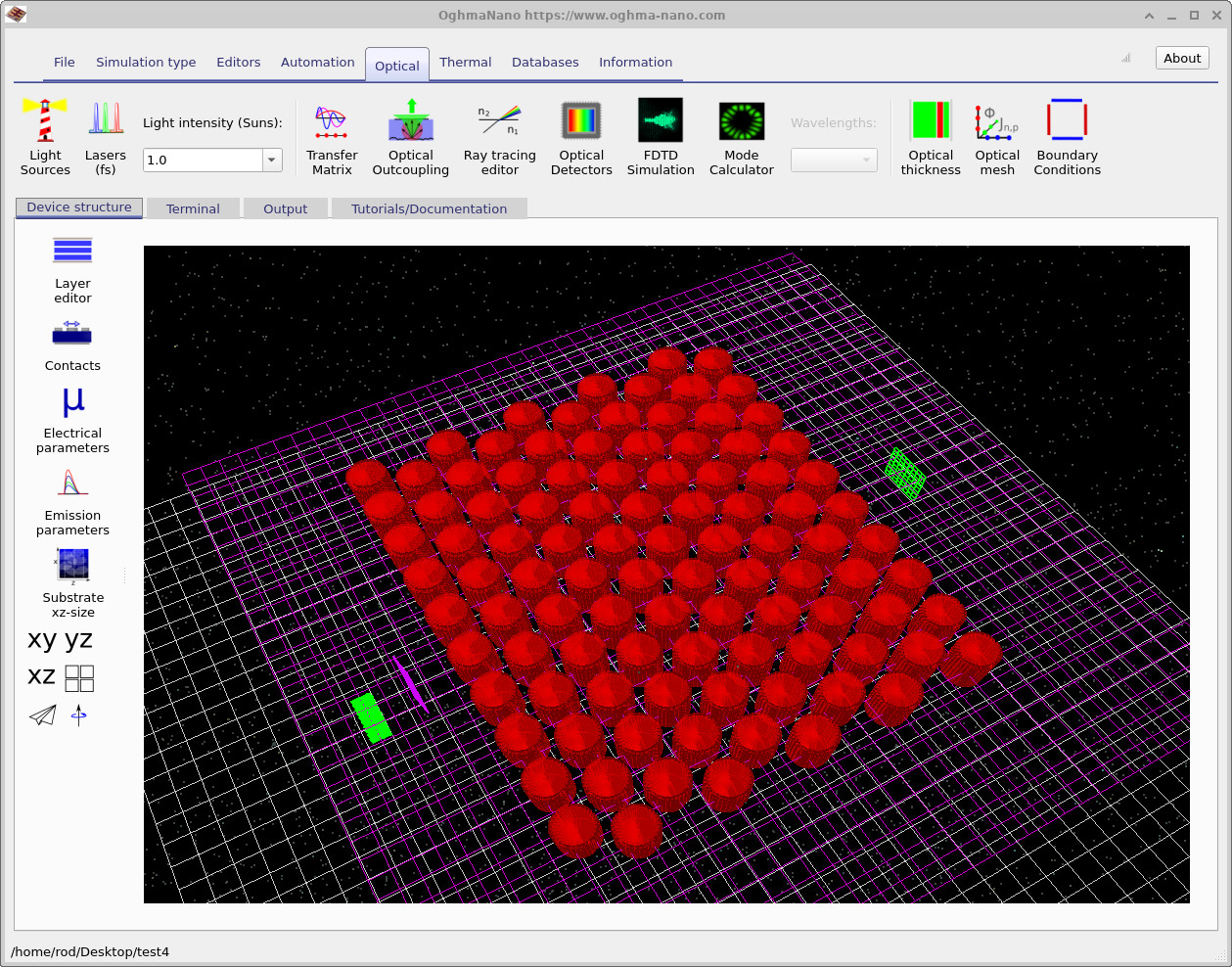
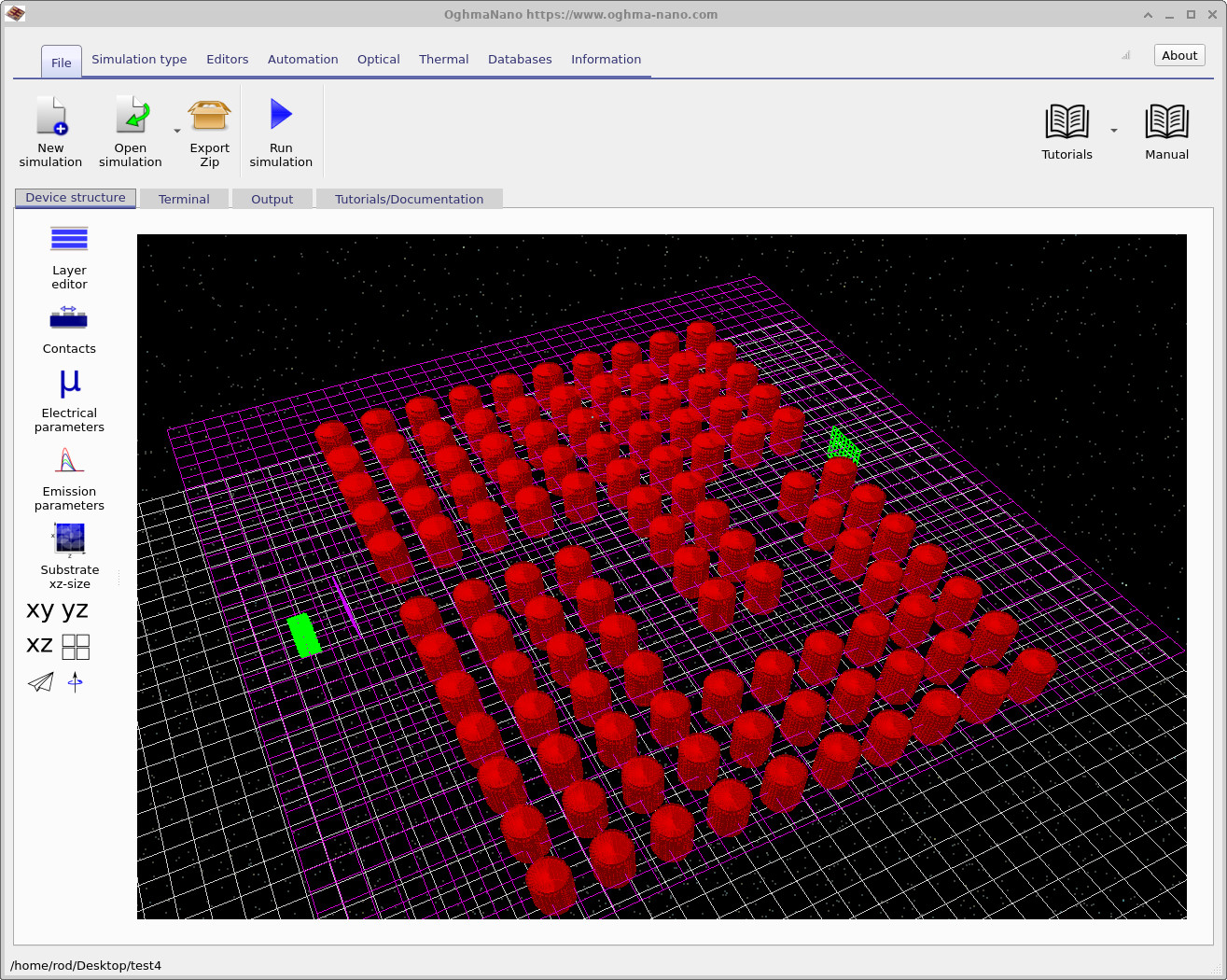
The example script shown in ?? creates a 13 × 10 lattice with a pitch of 400 nm. A small number of if statements set skip=true for selected pillars, preventing them from being added to the structure. The resulting line of missing pillars forms a defect channel through the crystal. In this example the defect follows a U-shaped path, producing the photonic crystal waveguide shown in ??.
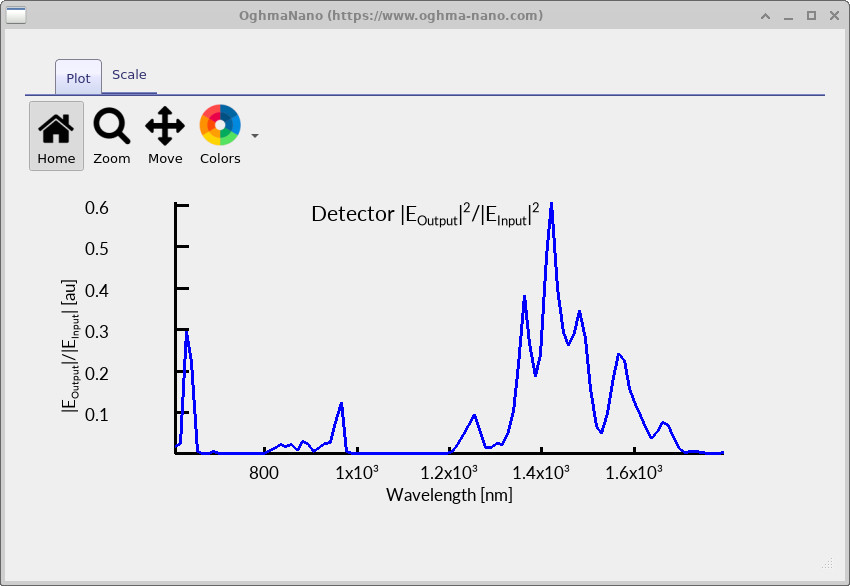
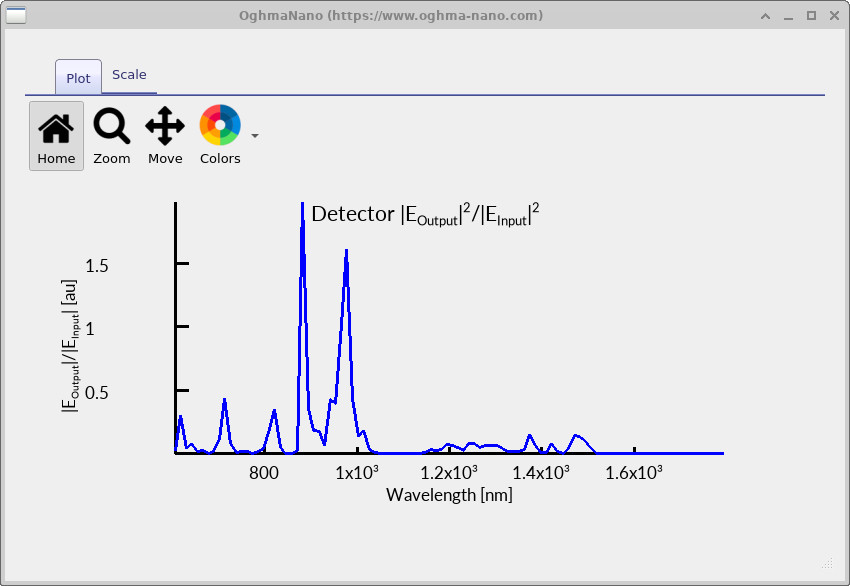
Re-run the simulation and reopen lam_norm.csv. The transmission spectrum of the waveguide (??) now contains several narrow transmission peaks rather than a single broad band. These peaks correspond to guided modes supported by the defect channel within the photonic band gap. Light at these wavelengths is confined to the waveguide and successfully routed around the bend, while wavelengths outside the guided modes are blocked by the surrounding crystal.
Congratulations! You have run a photonic crystal FDTD simulation, measured its transmission spectrum, explored how the photonic bands shift with geometry, and created a working photonic crystal waveguide by introducing a defect into the lattice.
8. The output from FDTD simulation
Each FDTD run produces a collection of outputs that capture different aspects of the optical behaviour — from time snapshots of the field, to the spectra recorded by each detector, to the geometry of the device itself. These files are usually plain csv files which can be opened directly in OghmaNano’s built-in viewers or processed externally (for example, plotting data in Excel or Python). The most important outputs for this photonic crystal study are summarised in Table 1 below.
| File name | Description |
|---|---|
| detector0/lam_E.csv | Input spectrum |E|2 vs wavelength (purple detector) |
| detector1/lam_E.csv | Output spectrum |E|2 vs wavelength (green detector) |
| detectorN/lam_norm.csv | Transmission |Eout|2/|Ein|2 vs wavelength |
| snapshots/ | Time snapshots of the field (e.g. Ey.csv); see ?? |
| device.csv | 3D device / geometry model |
| escape.csv | Energy escaping the simulation domain |
| power.dat | Field power vs time |
| conv.dat | Convergence of the FDTD solver |
| gui_config.json | Saved view/plot settings; see ?? |